Reduce Polycount and Reshape AI 3D Models in the Browser
Reduce the polycount of an AI-generated or uploaded 3D model with a live triangle slider, then taper, tilt or stretch it with a deform cage in the browser. Includes polycount targets by platform and Blender and MeshLab comparisons.

AI-generated 3D models tend to arrive heavy. A prop that should cost a few thousand triangles comes back with a hundred thousand, and a crate that should lean a little to fit the scene stands perfectly upright. Both problems used to mean a trip to Blender.
This guide shows how to reduce polycount and reshape a model in the browser with Sloyd's Mesh Modifiers, released on 30 October 2026. You drag one slider to cut triangles while you watch the model, then bend, taper, tilt or stretch it with a deform cage called Wack, and export the result to your engine, your slicer or a DCC tool. You will also find polycount targets by platform and when Blender, MeshLab, Instant Meshes or Simplygon is the better tool.
What Are Mesh Modifiers?
Mesh Modifiers is a Sloyd tool that changes the geometry of an existing 3D model in the browser, with two tabs: Decimate ("Make the model lighter") and Wack ("Bend and reshape the model"). It works on models you made in Sloyd and on models you upload, and it is open to every signed-in user.
You find it in the app under 3D Tools > Mesh Modifiers, or from the Post-processing menu of any model in your activity. Upload accepts .blend, .dae, .fbx, .glb, .gltf, .obj, .ply, .stl, .usd, .usda and .usdc, so a model from another generator or an old project works as well as one you just made with text to 3D or image to 3D.
Decimation vs Retopology vs LOD
Decimation removes triangles from an existing mesh, retopology rebuilds a clean new mesh over it, and LOD is a set of progressively lighter versions that an engine swaps by distance:
- Decimation removes triangles from an existing mesh by collapsing edges, keeping the overall shape and the UVs. It is fast and automatic, and the result is still a triangle mesh with the same layout, only sparser.
- Retopology builds new, clean topology on top of a model, usually quads that follow the form, so the mesh deforms well when rigged and is easy to edit. It replaces the mesh, so UVs and textures have to be redone or baked.
- LOD (level of detail) is a set of versions of the same model at falling triangle counts, which the engine swaps by distance. You usually build the lower LODs by decimation.
Rule of thumb: decimate static props, environment pieces and print files. Retopologize characters that will be rigged and animated. Build LODs for anything that appears many times or far away in a real-time scene.

Polycount Targets by Platform
The right polygon count depends on where the model runs and how often it appears on screen. The numbers below are general guidance from common practice, not hard rules; your own frame budget and art style decide in the end.
| Platform | Typical triangles per prop | Hero or character | Notes |
|---|---|---|---|
| Mobile games | 300 to 3,000 | 3,000 to 15,000 | Draw calls and texture memory matter as much as triangles |
| Web and WebGL (three.js) | 1,000 to 10,000 | 10,000 to 50,000 | File size drives load time; see compression below |
| Roblox | 500 to 5,000 | under 10,000 | Roblox caps an individual mesh at 20,000 triangles |
| PC and console | 2,000 to 30,000 | 50,000 to 150,000 | Pair with LODs for anything seen at a distance |
| 3D printing (STL, 3MF) | 50,000 to 500,000 | same | Slicers care about file size and smooth curves, not frame rate |
The Roblox figure is a hard limit: Roblox's modeling specifications state that "individual meshes can not exceed 20,000 triangles" (read on 30 October 2026 at create.roblox.com). Sloyd's own Roblox presets target 10,000 triangles for a character and 4,000 for an accessory. For a deeper look at stylized budgets, read using Sloyd for low poly game assets and the low poly glossary entry.
How to Reduce Polycount with the Decimate Slider
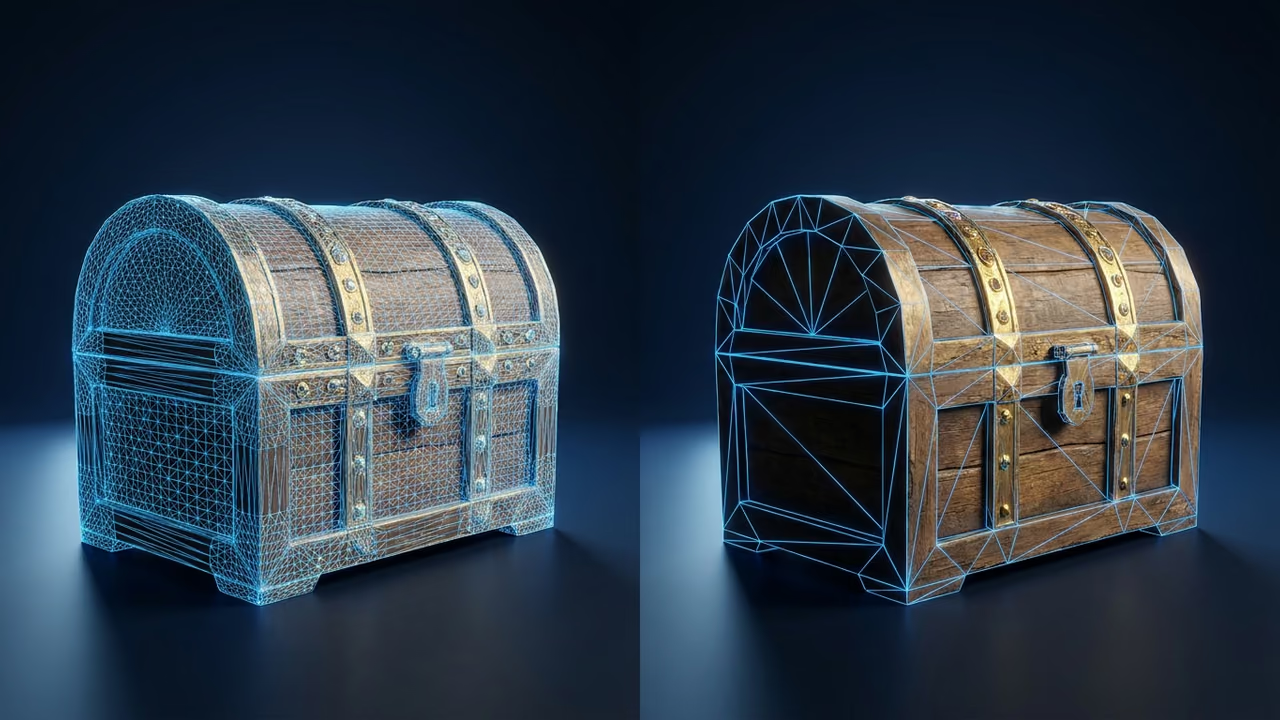
To reduce polycount in Sloyd, open the model in Mesh Modifiers, pick the Decimate tab and drag the Triangles slider left until the count and the silhouette both look right. The preview updates on the model as you drag, and the exact triangle count sits above the slider.
Step 1: Open your model
Go to Mesh Modifiers and either drop in a file or pick a recent model from the panel below the upload area. You can also open any model in your activity and choose Mesh Modifiers from its Post-processing menu.
Step 2: Read the starting triangle count
When the model loads, the Triangles readout shows the full count of the loaded mesh. Compare it with the target for your platform in the table above before you touch anything.
Step 3: Drag the slider to your target
The slider runs from the loaded count at the right end down to the lowest count the simplifier can reach without tearing parts at the left end. The scale is logarithmic, so you get fine control in the low range where game budgets live. The model redraws about a tenth of a second after the slider settles, and the label on the handle shows the exact target while you drag.
Step 4: Check the silhouette and the texture
Orbit the model and look at the outline from the angles players will actually see. The simplifier weighs normals and UVs while it collapses edges, so textures stay mapped, but thin parts such as straps, antennae and fingers are the first to suffer. If they break, nudge the slider back up.
Step 5: Export
Click Export to download, or Send to to push the model into a connected tool through the Sloyd plugins. Exporting an unedited model works as usual; exporting an edited model needs a Sloyd Plus or Sloyd Pro plan. The export is built from your edits on the fly, so you do not have to save a copy first, and the file is named after the source with "(Decimated)" added.
A note for Roblox: the Send to Roblox action in the Roblox plugin stays disabled while a model is over 20,000 triangles or has a texture larger than 1024 x 1024. Decimating below the line lifts the triangle part of that block. Head to the Roblox developers page for the rest of that workflow.
How to Reshape a 3D Model with the Wack Deform Cage
Wack reshapes a whole model by moving an invisible box around it, mostly its top while the base stays planted, so you can taper, lean, tilt, twist or stretch a model without editing a single vertex. It is the browser equivalent of a simple lattice deform, and it is good for turning one asset into several variants.
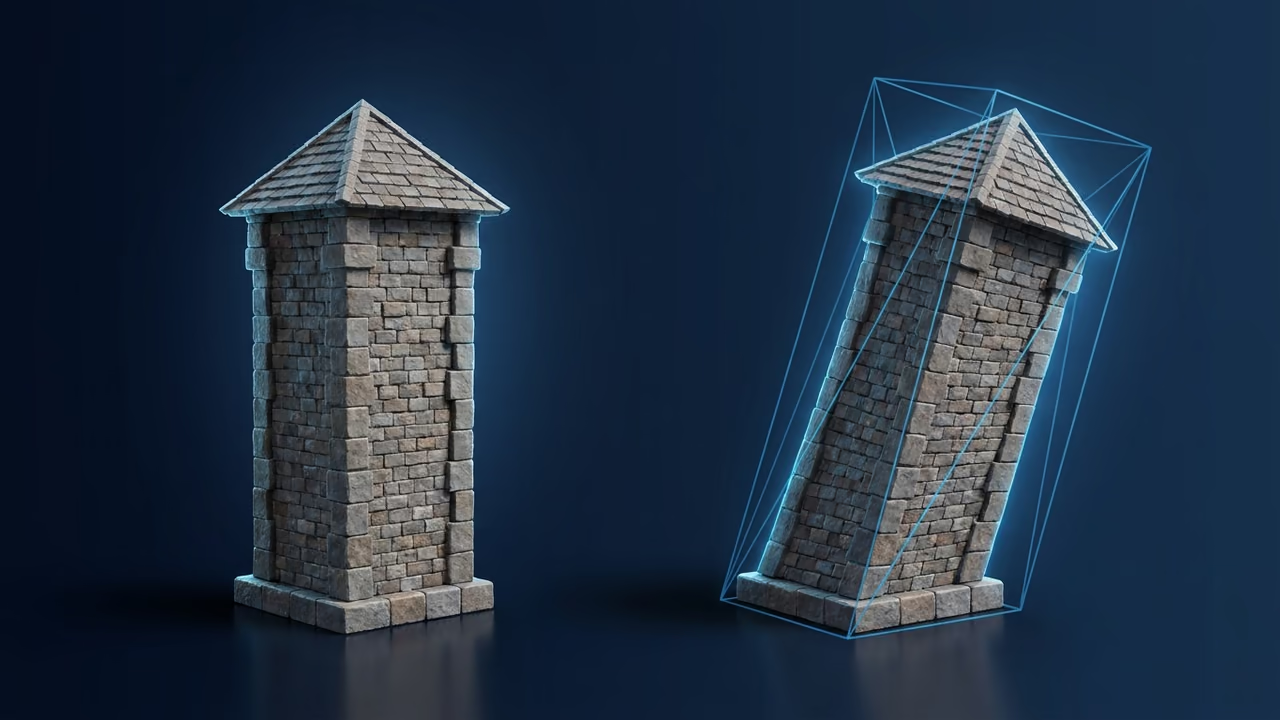
Open the Wack tab and pick one of four groups. Every slider starts in the middle, which leaves the model unchanged:
| Group | Sliders | Range |
|---|---|---|
| Taper | Top width, Top depth | x0.00 to x2.00 of the top |
| Slant | Lean, Lean forward | -100% to +100% of the model's size |
| Tilt | Tilt sideways, Tilt forward, Twist | -90° to +90° |
| Scale | Width, Depth, Height | x0.00 to x2.00 |
Each group has a reset button that puts its sliders back to default, and a dot on the tab tells you which groups you have changed. You can decimate and Wack the same model; the export then carries both edits and gets "(Edited)" in its name.
Some ideas that work well:
- Prop variants. Taper and lean one barrel, bottle or tower three different ways and you have a set that does not look copy-pasted.
- Cartoon stylization. A slight Twist and a wider top turn a stiff AI-generated building into something that reads as hand-made.
- Fit to scene. Scale Height or Width to squeeze a door, shelf or crate into a gap without re-generating it.
- Print stands and keychains. Shape a figurine first, export it as GLB and upload that file back to Sloyd, then seat the uploaded copy on a base with Mounts & Keychains. Mesh Modifiers edits are not saved to the original model, so other tools load the unedited version.
Which Models Mesh Modifiers Cannot Edit
Mesh Modifiers is built for static meshes, and it tells you plainly when a model is out of scope. These are the cases to expect:
- Animated models get Decimate only. Wack is not offered for animations, and it also reports "Wack is not available for this model" for rigged (skinned) or instanced meshes.
- Flat models cannot be Wacked. The cage needs thickness on every axis, so a plane or a model with zero depth on one axis is not supported.
- Split to Parts results are excluded. Models that came out of splitting a model into parts do not offer Mesh Modifiers.
- Some geometry stays as loaded. If the file has no decimatable mesh you see "This model has no mesh that can be decimated", and meshes split into several material groups keep their original triangles while the rest is reduced.
Where it is not the answer: Mesh Modifiers does not retopologize, remesh to quads, edit individual vertices or bake textures. For a rigged hero character that needs clean edge loops, use a retopology tool.
Mesh Modifiers vs Blender, MeshLab, Instant Meshes and Simplygon
Sloyd's tool is a quick path when the model is already in your Sloyd account and you want a visual result in a minute; desktop tools win on depth and batch control. Everything below was checked on 30 October 2026 on each vendor's own site or documentation.
- Blender Decimate modifier. Free and open source. The Blender 5.2 LTS manual lists three modes: Collapse (with Ratio, Symmetry, Triangulate and a Vertex Group to limit where it acts), Un-Subdivide (Iterations) and Planar (Angle Limit, with Delimit options for Normal, Material, Seam, Sharp and UVs). Pick it when you need vertex-group control or want decimation in a larger modifier stack.
- Blender Lattice modifier. Deforms a mesh to match a Lattice object, with Strength and an optional Vertex Group, and the manual notes it does not change texture coordinates. Pick it over Wack when you need more than a box: a lattice can have many subdivisions and bend in the middle.
- MeshLab, Quadric Edge Collapse Decimation. MeshLab is open source under GPL 3.0 (latest release 2025.07). The filter takes a target number of faces or a percentage, plus options such as Preserve Boundary, Preserve Normal, Preserve Topology and Planar Simplification, and there is a separate variant for textured meshes. Pick it for scanned data and precise, scriptable reduction through PyMeshLab.
- Instant Meshes. A free field-aligned remesher from the SIGGRAPH Asia 2015 paper, which powered Modo's automatic retopology from version 10.2 until Foundry ended Modo development in 2024. You set a desired face or vertex count and get a pure or dominant quad or triangle mesh as OBJ or PLY. The last commit on GitHub is from November 2019, so treat it as stable but unmaintained. Pick it when you actually need retopology, not decimation.
- Simplygon (Microsoft). An SDK for LOD chains, remeshing and object aggregation, with integrations for Unreal Engine, Unity, 3ds Max, Maya, Blender and Houdini (preview). The Games Title License is listed at $42k per title per year, with indie discounts of up to 85% down to $6,300 per year for the smallest studios. Pick it for automated LOD pipelines at studio scale.
| Tool | Runs in | Decimate | Deform | Retopology | Price (30 Oct 2026) |
|---|---|---|---|---|---|
| Sloyd Mesh Modifiers | Browser | Yes | Yes | No | Free preview (sign-in), edited export on Plus or Pro |
| Blender | Desktop | Yes | Yes | Manual or QuadriFlow | Free |
| MeshLab | Desktop, Python | Yes | Limited | No | Free (GPL 3.0) |
| Instant Meshes | Desktop | No | No | Yes | Free |
| Simplygon | SDK, plugins | LOD chains | Not a focus | Remesher | From $6,300/yr (indie) |
Sloyd Plus is $15/month ($150/year) and Sloyd Pro is $50/month ($500/year); see the pricing page. If you would rather describe the change, the Sloyd Agent (Beta, for subscribers) can run Blender operations such as decimate or remesh on an existing model and returns the result as a new model; our roundup of AI agents for creating game assets covers how that compares with other agents.
Tips for Lighter, Better Models
Lighter models are about more than triangles. These habits get you the most from one decimation pass:
- Generate close to the target. Sloyd's polycount slider for generation runs from 3,000 to 500,000 triangles, so pick a low step for game props rather than decimating 500K down to 2K.
- Decimate before you pack. Reduce each model, export it as GLB and upload it back to Sloyd, then combine the uploaded copies into one file with a shared atlas, as in exporting multiple 3D models as one game asset pack. Asset packs read the saved models, not your unsaved edits.
- Compress after you decimate. Fewer triangles plus mesh compression is where web load times drop; see 3D file compression tips and the ultimate guide to 3D mesh compression.
- Measure, do not guess. Check the triangle count and texture resolution before you export, not after an import fails.
- Plan the whole budget, not one mesh. Decimation is one step of optimization; for draw calls, textures and shaders see how to optimize 3D models for game performance, for where detail is worth keeping read detail vs performance trade-offs, and for distance-based swaps follow the LOD guide and real-time optimization tips.
- Pick the right format. Use GLB for web and engines, FBX for Roblox and older pipelines, and STL or 3MF for printing.
Common Mistakes
Most bad results with Mesh Modifiers come from five avoidable mistakes:
- Decimating a character you plan to rig. Decimation keeps triangles, not edge loops, so joints may bend badly. Retopologize instead.
- Judging only from the front. Thin details collapse first; orbit the model before you export.
- Going to the far left of the slider. The lowest count is the floor the simplifier can reach, not a recommended target.
- Forgetting the texture budget. A 4K texture on a 2,000-triangle prop wastes more memory than the triangles you saved. In Sloyd, a texture above 1024 x 1024 blocks Send to Roblox.
- Wacking an animated model. Wack is not offered there; decimate the animation and reshape the static source model instead.
FAQ
How do I reduce the polycount of a 3D model online?
Open the model in Sloyd Mesh Modifiers, select the Decimate tab and drag the Triangles slider until the readout matches your target. The preview updates live in the browser. Export to GLB, FBX, OBJ, STL and other formats; exporting an edited model needs a Sloyd Plus or Pro plan.
Is decimation the same as retopology?
No. Decimation removes triangles from the existing mesh and keeps its UVs, which suits static props and print files. Retopology builds a new, clean quad layout over the model, which suits characters that will be rigged. Use Instant Meshes, Blender's QuadriFlow remesh or manual retopology in Blender for that.
How many polygons should a game asset have?
As general guidance, mobile props sit around 300 to 3,000 triangles, web props 1,000 to 10,000, and PC or console props 2,000 to 30,000, with heroes and characters higher. Roblox caps a single mesh at 20,000 triangles. Your frame budget and how often the asset appears decide the final number.
What is the Wack tool in Sloyd?
Wack is the deform cage in Sloyd Mesh Modifiers. It reshapes a box around the model, mostly by moving its top, with Taper, Slant, Tilt and Scale groups. Use it to lean, twist, taper or stretch a static model into variants without editing vertices.
Why is Wack not available for my model?
Wack works on static meshes with thickness on every axis. It is not offered for animations, and it reports that it is unavailable for rigged or instanced meshes and for flat models with zero depth on one axis. Decimate still works on animated models.
Can I decimate a model I made somewhere else?
Yes. Upload it to Mesh Modifiers in .blend, .dae, .fbx, .glb, .gltf, .obj, .ply, .stl, .usd, .usda or .usdc format. Any signed-in user can preview edits; exporting an edited model requires a Sloyd Plus or Sloyd Pro plan.
Does Mesh Modifiers save a new copy of my model?
No. The edited file is built when you export or send it, so you do not need to save a copy first. The downloaded file keeps the source name with "(Decimated)", "(Deformed)" or "(Edited)" added, depending on which tools you used. To use the edited version in another Sloyd tool, such as Split to Parts, Mounts & Keychains or an asset pack, upload the exported GLB back to Sloyd and work from that copy.
Make Your AI Models Lighter and More Varied
Generate close to your budget, cut the rest with the Decimate slider, give each copy its own shape with Wack, and export straight to your engine or slicer.
Open Mesh Modifiers in the app, or start a new model with text to 3D or LLM 3D Creation for hard-surface objects. Automating the pipeline? The 3D model generation APIs guide and the Sloyd API cover the developer side. See the full workflows on the game development and 3D printing pages, browse free 3D models to practice on, and compare plans on the pricing page.