How to Make a 3D Product Video for E-commerce
Make a 3D product video from a product photo: camera moves via presets and prompts, and the right aspect ratio for PDPs, ads, and social.
A still photo tells a shopper what a product looks like. A few seconds of motion tell them what it would be like to hold it: how light travels across the finish, how the lid opens, how the proportions read from the side. That is why a 3D product video earns its place on a product page, and why the same clip does double duty as an ad creative.
The old way to get one was a studio day: a rig, a lightbox, and an afternoon. The short way needs one thing you probably already have: a clean product photo. Sloyd Video Studio turns it into a clip, and when the clip needs a line of narration or a single sound effect on top, Sloyd Audio sits in the same account.
This guide covers the product-photo route, the camera moves that make a clip feel intentional, and which aspect ratio to render for each placement.
Start From Your Product Photo
If you have one good photo, start here. In Video Studio you set that photo as the start image, describe the shot, and get a clip back. No modeling, no scanning.
Choose the shot before you write the prompt
Product clips that work tend to be one subject, one camera move, one thing happening. Pick which of these you are making before you type:
- The reveal. The product sits in shadow or behind an element that moves aside, then the light lands on it.
- The push in. The camera starts wide and closes on the detail that justifies the price: the stitching, the grain, the hinge.
- The hero hold. The product barely moves, the light does. Good for glass, metal, and anything glossy.
Write the prompt around the material
Name the material, the light, and the one movement. Leave the rest alone, because every extra instruction competes with your product for the model's attention.
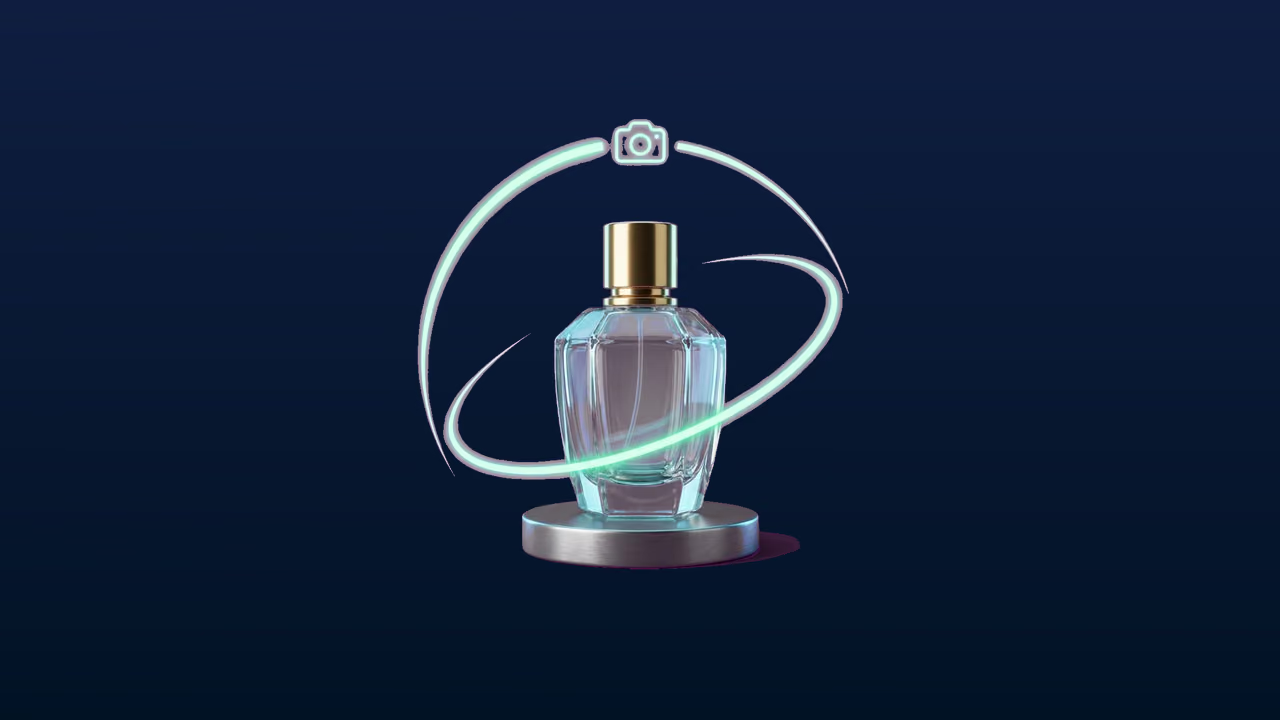
Try: "The camera pushes in slowly on the bottle, warm studio light sweeps across the glass, faint dust in the air, the product stays centered and in focus."

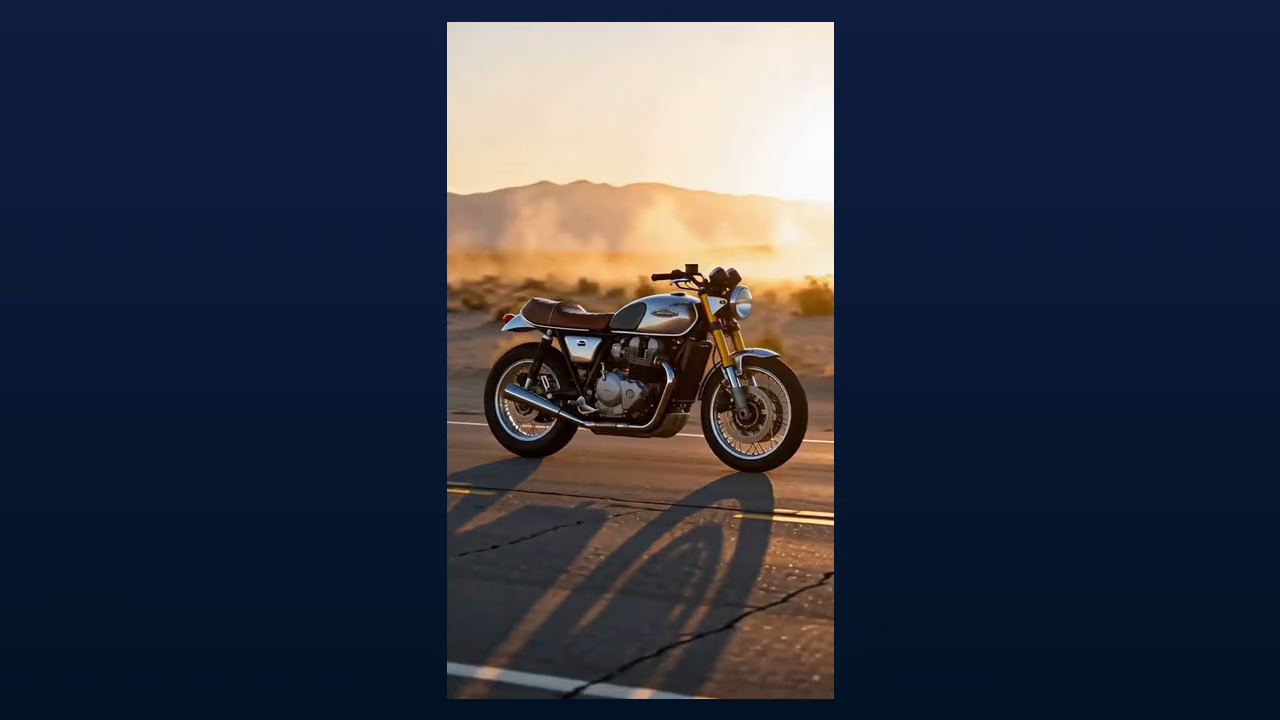
The clip above started as one still image of a prop and a prompt describing a slow push in. The subject does not matter to the workflow: a bottle, a sneaker, or a chest all follow the same three steps.
Two things to know about the output. Each generation runs 5 to 15 seconds, and Extend continues a clip when you want a longer sequence. Sound is generated along with the picture, so the clip arrives with ambience instead of silence.
Pick the camera move instead of describing it
Video Studio has camera presets, which are more reliable than prose: Auto, Push in, Pull back, Orbit, Follow, or Locked. For product work, Push in and Orbit do most of the heavy lifting, and Locked is the one to choose when the product must not drift out of frame.
You can also add an end frame. If the shot has to land on the packaging or a logo, set that image as the end frame and the clip will arrive there.
If you want the shopper to rotate the product themselves rather than watch a clip, that is a 3D embed rather than a video. Our guide to adding 3D product previews to Shopify or Amazon covers that path, and 3D models vs. traditional images compares what each format does for conversion.
Aspect Ratios for PDPs, Ads, and Social
Pick the frame before you generate, not after. Cropping a 16:9 clip into a vertical ad reframes the product badly, and re-rendering costs less than fixing it in an editor.
| Placement | Aspect ratio | Why |
|---|---|---|
| Product page gallery | 1:1 or 4:3 | Matches the still images already in the carousel |
| Product page hero or banner | 16:9 | Sits in the page width without letterboxing |
| Reels, Shorts, and TikTok | 9:16 | Full-screen vertical, no bars |
| Paid social feed | 1:1 or 3:4 | Takes up more of the feed than landscape |
| Marketplace and email | 16:9 or 1:1 | The safest pair across templates |
| Site-wide or launch banner | 21:9 | Cinematic strip that crops cleanly on mobile |
Video Studio offers 16:9, 9:16, 1:1, 21:9, 4:3, and 3:4 at 480p, 768p, or 2K. Where a platform asks for 4:5, render 3:4 and crop, or render 1:1 and let the feed frame it. Generated clips download as MP4.
Common Mistakes With Product Videos
- Asking for too much in one clip. One product, one move, one beat. Cut several short clips together instead of requesting a mini commercial.
- Starting from text when you have a photo. A prompt invents a product that looks like yours. A start image keeps the one you actually sell.
- Generating before choosing the aspect ratio. Set 9:16 for Reels and 16:9 for the page hero up front.
- Shipping a 2K loop on the product page. Lower the resolution for on-page loops and keep 2K for ads.
- Forgetting the sound. Clips come back with generated sound, but a specific line or effect should be made on purpose rather than left to chance.
FAQ
How do I make a 3D product video from a photo?
Open Video Studio, set the product photo as the start image, describe one camera move such as a slow push in, choose the aspect ratio, and generate. Each generation is 5 to 15 seconds long, and Extend continues the shot if you need more.
What resolution and format should I use for a product page?
Render 480p or 768p for a small on-page loop to keep the page fast, and 2K for ads and hero placements. Generated video downloads as MP4.
Can I add a voice-over or a sound effect to the clip?
Yes. Every generated clip already comes with sound. When you need a specific line or effect, Sloyd Audio makes sound effects and loops from 0.5 to 30 seconds and reads up to 5,000 characters in a voice from the library, and every clip downloads as a 44.1 kHz MP3 for your editor. Audio generation is part of Sloyd Plus and Sloyd Pro. For a wider comparison, see our guide to ElevenLabs alternatives for sound effects and voice.
Which AI model generates the video?
You do not pick one. Sloyd routes each workflow, whether you are generating, animating a still, editing, or extending, so the decision you make is about the shot rather than the model. If you want to see how that compares with tools that do expose a model list, read our Runway alternatives comparison.
Make the Product Videos From the Photos You Already Have
A product video stops being a project once the clip comes straight from a photo you already shot. Set the product photo as the start image, pick a camera move, render a 9:16 MP4 for social and a 16:9 for the page, and move on to the next SKU.
Start a clip in Sloyd Video Studio, see what 3D does for a storefront on the e-commerce page, and add narration or effects with Sloyd Audio. Ready to generate? Open Video Studio and compare plans on the pricing page.