Export Multiple 3D Models as One Game Asset Pack
Bulk export up to 16 AI-generated 3D models as one game asset pack: a single GLB, FBX or OBJ file with shared textures. Why one file cuts draw calls and memory, how to export it from Sloyd, and how to import it into Unity, Unreal, Godot and Roblox.
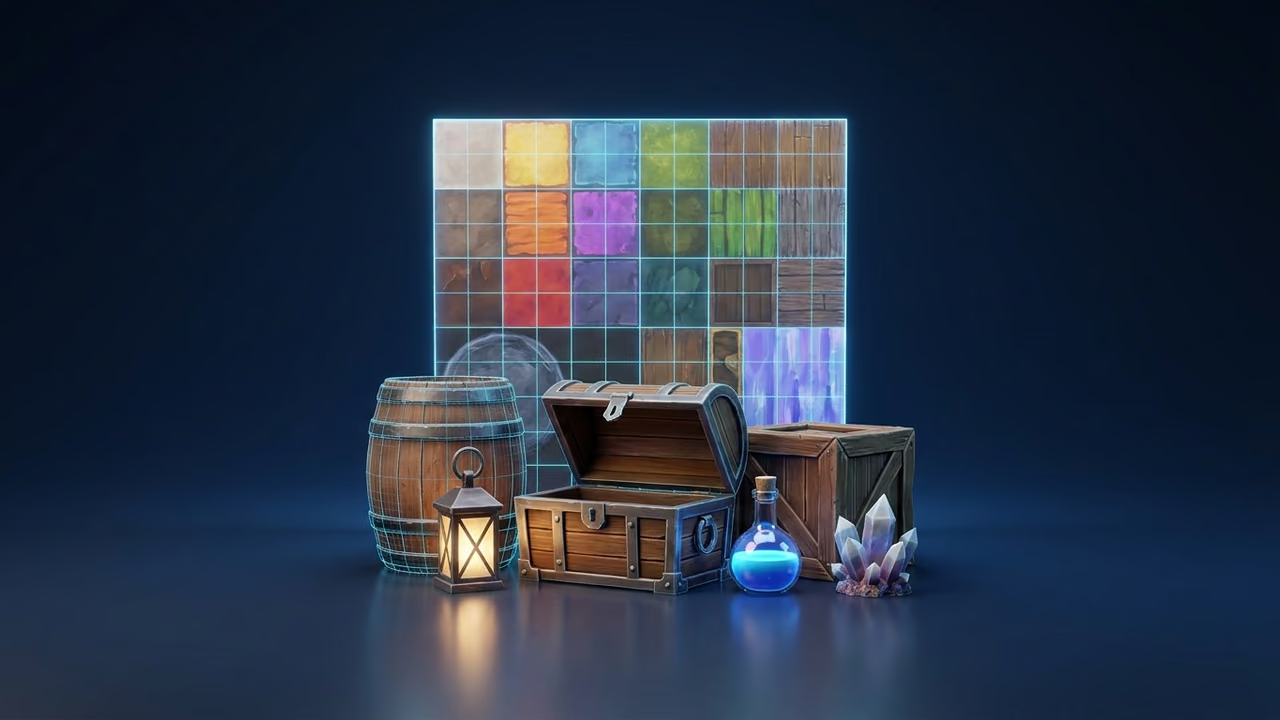
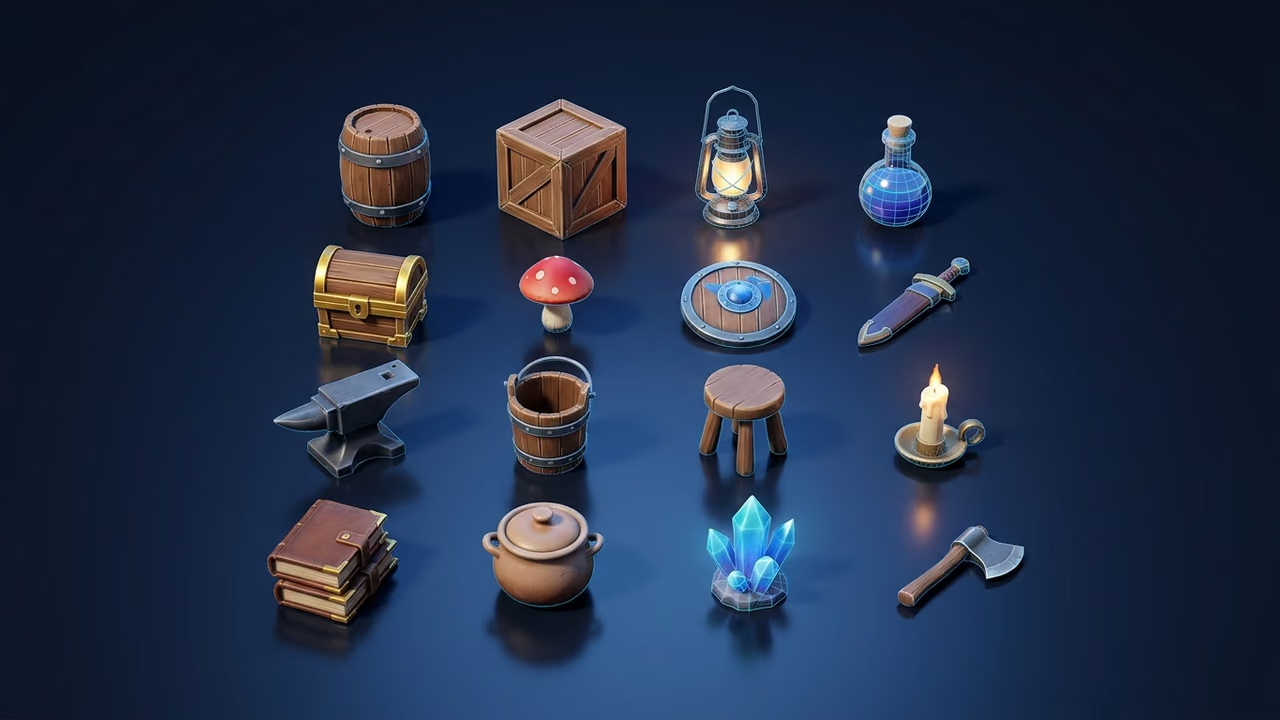
Sixteen props for a market scene usually means sixteen files, materials and texture sets to import and keep in sync. A game asset pack turns that into one file: every model sits in the same scene and, with the shared atlas option on, samples the same small set of textures. Your engine loads fewer images, with a clear path to fewer draw calls.
This guide shows how to export multiple 3D models as one file from Sloyd, why it pays off, when to keep models separate, and how to import the pack into Unity, Unreal, Godot and Roblox. Generate the models first with text to 3D or image to 3D.
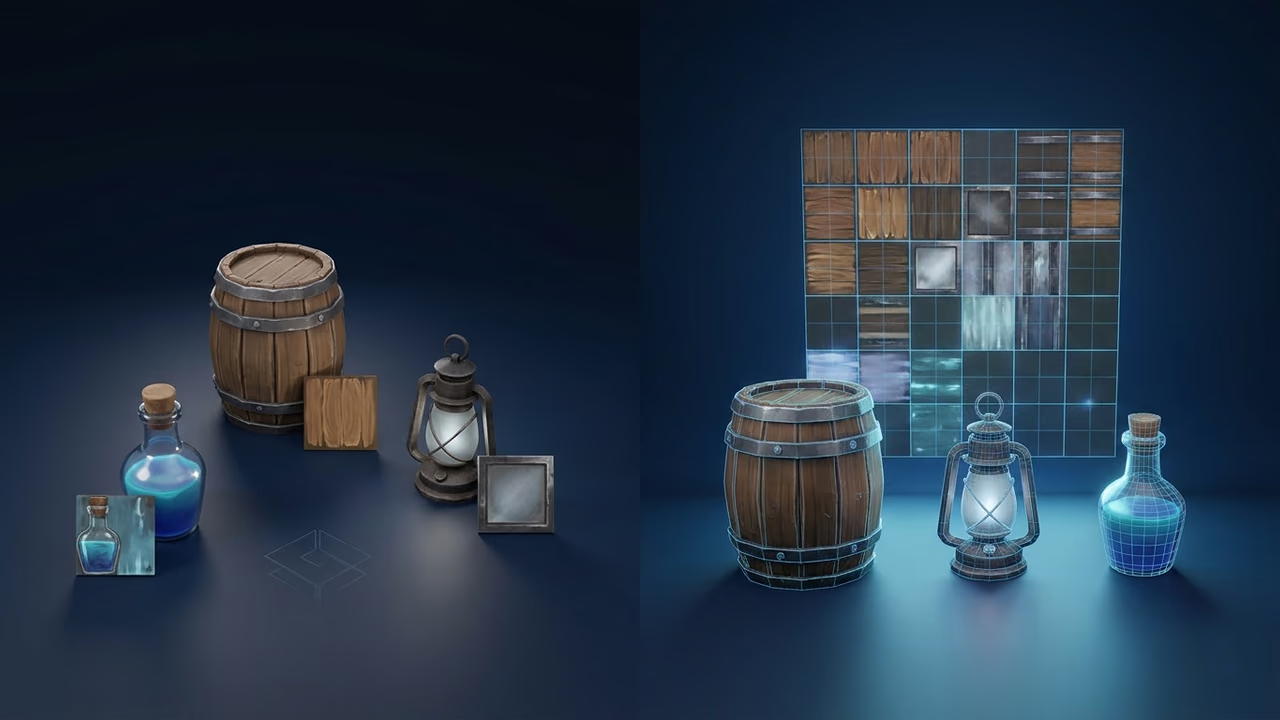
The option that makes the pack efficient is a shared texture atlas: Sloyd places every model's textures side by side in one set of images and remaps each model's UV coordinates to its own region, so all meshes sample the same textures and can share one material wherever their material settings match. 2D games have done the same with sprite sheets for decades.
Why Export Multiple 3D Models as One File?
Exporting multiple 3D models as one file with shared textures matters because every distinct material is a reason for the engine to split rendering into another draw call. Fewer materials and textures mean fewer state changes, less texture memory overhead and more meshes the engine can batch together.
- Fewer draw calls. Meshes that share one material can be combined by static batching, GPU instancing or a simple mesh merge. Meshes with different materials cannot.
- Fewer texture binds and files. Four atlas images instead of a separate set of maps for every model.
- Predictable memory. One 2K atlas is a known cost. A folder of mixed 1K, 2K and 4K maps is not.
- Tighter budgets on weak hardware. Mobile GPUs, WebGL and WebGPU games and Roblox experiences all hit draw call and memory limits long before a desktop GPU does. For web builds, also read our guide to 3D file compression for faster game asset loading.
Atlasing does not reduce triangles. Keep an eye on polygon count separately, and reduce it before you pack if a model is heavier than it needs to be. Our post on mesh modifiers for decimating and reshaping AI 3D models covers that step. Mesh Modifiers edits are not saved back to the original model, so export the decimated model as GLB, upload it in My Activity, and pack that uploaded copy.
What Sloyd's Asset Pack Export Does
Sloyd's bulk export packs 2 to 16 finished 3D models into one download, with an optional shared texture atlas. What you get depends on two switches:
| Setting | What you download |
|---|---|
| Both switches off | One ZIP with each model as its own file, named after the model |
| Pack all models in 1 file | One file with every model laid out side by side on a grid, each keeping its own textures |
| Texture Atlas (forces 1 file) | One file with every model on a grid, all sharing one set of atlas textures |
With Texture Atlas on, Sloyd builds four shared maps: base color, normal, emissive, and an ORM map that packs ambient occlusion, roughness and metalness into the red, green and blue channels (the standard glTF layout). Each model gets one square cell in a grid, with a 2-pixel gutter around it to reduce color bleeding between neighbors when the texture is filtered. At small on-screen sizes, distant mip levels can still blend neighboring cells slightly.
The formats on offer are the ones that carry full PBR materials:
- GLB (recommended): one compact binary glTF file, the most direct path into Godot, web engines and Unreal.
- FBX: the classic interchange format for Unity and Unreal pipelines. See the FBX glossary entry.
- OBJ + MTL: a ZIP with the OBJ, its MTL material file and the textures, in WEBP, PNG or JPG.
- USDZ: single-file USD for Apple and AR previews.
- BLEND: Blender's native file, for edits before the engine.
Plain OBJ is not offered for packs because it carries no materials, so there would be nothing to atlas.
How to Export Multiple 3D Models as One Asset Pack
Exporting an asset pack is one dialog once your models are done: select them, open the export dialog, set the atlas options and download. Downloads need a Sloyd Plus or Sloyd Pro plan. Without one, the download button opens a subscribe prompt.
1. Make the models you want in the pack
Generate each prop with text to 3D or image to 3D, or split a larger model into separate pieces first with AI part splitting. Packs work best when the models share a style and scale, like a set of low-poly game assets for one level. To batch generation from code or a chat agent, see the 3D model generation API guide and the MCP server guide. The export itself happens in the web app.
2. Start from My Activity or from a project
- From My Activity: open My Activity, tick the checkbox on each model you want (or use the select control on a date heading to take a whole day), then click the Export models icon (the package icon) in the selection bar that appears. Images, videos and unfinished or failed jobs in the selection are ignored. If fewer than 2 finished 3D models remain, Sloyd asks you to select at least 2.
- From a project: open the project under My Projects and click Export Models in the toolbar. This exports every finished 3D model in the project. The button is on desktop only and appears once the project has at least 2 finished 3D models. If it has more than 16, the button is blocked with the same 16-model tooltip.
3. Stay within the 16-model limit
A pack holds up to 16 models. Select more and the export icon is blocked with the tooltip "Packs are limited to 16 models." Sixteen is the number of cells in the largest atlas grid, 4 by 4. For bigger sets, make themed packs (props, foliage, buildings).
4. Name the pack and choose a format
The dialog is titled Export N Models. Type a name in Name your Export (up to 60 characters; from a project it starts with the project name, otherwise it falls back to "Asset pack"). The field shows the file extension you will get. The atlas texture names use the pack name as a prefix, with anything other than Latin letters, digits, hyphens and underscores replaced, so a name like market_props works well. Then pick a format; GLB is marked as recommended.
5. Turn on Texture Atlas and set grid and resolution
Flip Texture Atlas on. Pack all models in 1 file switches on with it and locks, because an atlas only makes sense inside one file. Two settings appear:
- Grid Size: Auto, 2×2, 3×3 or 4×4. Auto picks the smallest grid that fits your models.
- Texture Resolution: Auto, 1K, 2K or 4K. Auto uses 2K.
Do the math before you choose. Each model gets one cell, so the texels per model are the resolution divided by the grid size. A 4K atlas on a 4×4 grid gives each model a 1,024-pixel cell. A 2K atlas on the same grid gives each model 512 pixels. 512 is often plenty for small background props; go 4K, or put fewer models in the pack so a smaller grid fits, for anything the camera gets close to.
If you only want one file without shared textures, leave Texture Atlas off and turn on Pack all models in 1 file instead.
6. Pick a texture format for OBJ + MTL
Only for OBJ + MTL, a Texture format menu appears with WEBP, PNG and JPG. Pick PNG or JPG if your target tool does not read WEBP.
7. Save the pack as a project (optional)
From My Activity, the Save pack as new project switch creates a new project with the same name after the download finishes. You can then re-export the same set later in another format or resolution.
8. Download
Click Download GLB (the label follows your format). The pack is assembled in your browser, and non-GLB formats are converted on Sloyd's servers before the download starts. You get one file, or one ZIP for OBJ + MTL and for separate files.
How Do You Import a Game Asset Pack into Unity, Unreal, Godot and Roblox?
Import the pack as one model file, then split or place the individual models in the engine. Every model is its own named node, so you can place each one separately while it keeps sampling the atlas.
One detail matters for draw calls in every engine: Sloyd keeps a separate material per model. In the GLB, each one points at the same four atlas textures but keeps that model's own settings, such as base color, metalness, roughness and emissive values. Where those settings match, assign one of the materials to all of those meshes (or merge them) and the engine can batch them. Where they differ, keep the separate materials: merging would change colors and surfaces, and you still load four textures instead of dozens. Other formats are converted from that GLB, so check the material setup after import.
Unity
Unity imports FBX natively. GLB needs a glTF importer package such as Unity's glTFast. Compare the imported materials and give one material only to props whose color and surface values match. Unity's Lit shaders pack metallic, occlusion and smoothness differently from glTF's ORM map, so let the glTF importer convert materials or repack the channels for a hand-made material.
Unreal Engine
Unreal imports FBX and, in recent versions, glTF and GLB. Where imported materials have matching settings, point those meshes at one material instance that samples the atlas textures. Import the normal and ORM maps as linear data, not sRGB.
Godot
Godot 4 imports glTF and GLB natively, so GLB is the shortest route. The pack shows up as a scene with one child per model. Save materials with matching settings as one shared resource and reuse it across those meshes.
Roblox
Roblox Studio's 3D Importer accepts FBX, OBJ and glTF, and Roblox lists a limit of 20,000 triangles per mesh, checked on 30 October 2026 in the Roblox mesh specifications. Each prop in the pack stays a separate mesh, so the limit applies per prop. If you set up PBR by hand with a SurfaceAppearance, Roblox expects separate grayscale roughness and metalness maps, so split the ORM channels in an image editor first. Roblox's texture specifications state different maximums for texture maps in different sections, so check the current limits there and the texture size after import. Our Roblox developer page and guide to the easiest way to create models for Roblox games cover the rest of that workflow.
When to Keep Models Out of a Shared Asset Pack
Share textures across sets of small and medium props that appear together. Keep hero assets, tiling surfaces and anything that needs its own shader out of the shared pack.
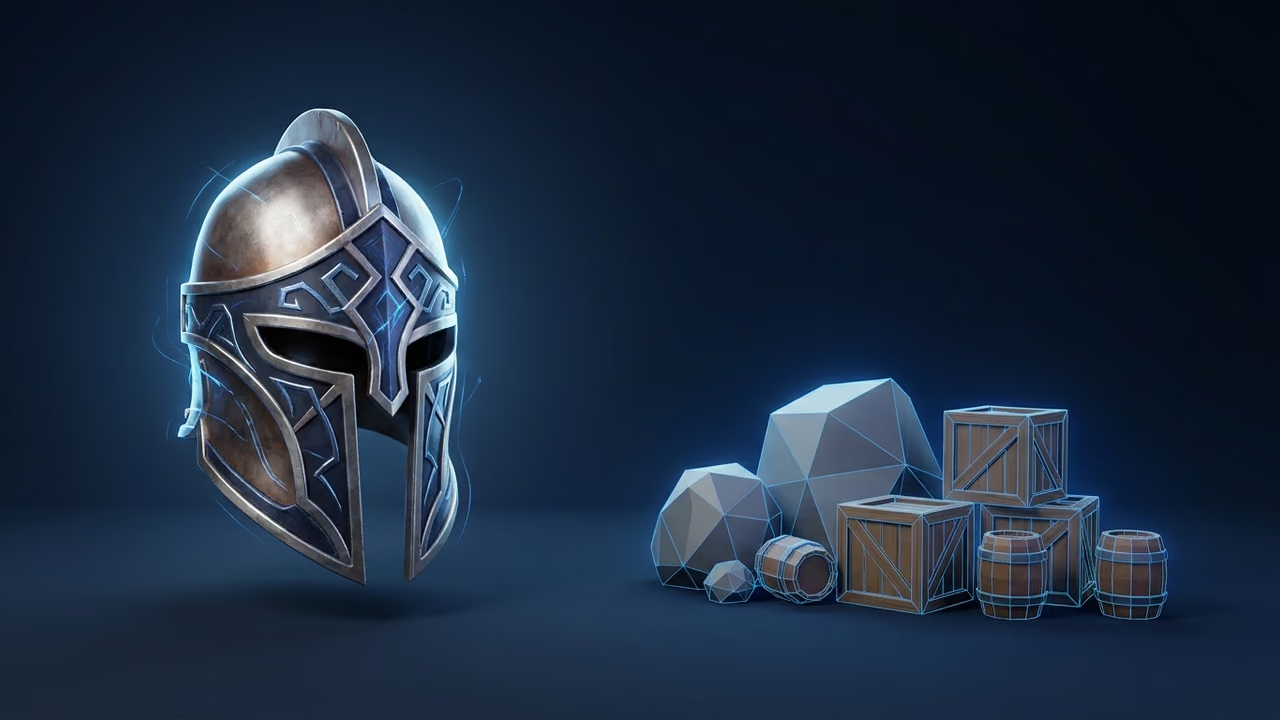
- Hero assets. A main character or a weapon the camera sits on deserves its own full-resolution textures, not a 1,024-pixel slice of a shared sheet.
- Tiling textures. Floors, walls and terrain repeat a texture across a surface. Atlas cells are clamped to their region, so a texture that relies on repeating will not tile once it is inside an atlas.
- Special materials. Glass, clear coat and other physical-material effects cannot be represented in this atlas. Meshes with multiple materials, missing UVs, bump, displacement or light maps, or nearest-neighbor filtering (common in pixel-art styles) also keep their own material instead of joining the atlas.
- Assets loaded at different times. If half the pack only appears in level 3, the atlas still loads all of it in level 1.
The atlas assigns one cell per mesh, not per model. Most AI-generated models are a single mesh, but if a pack contains models made of several meshes, it can need more than 16 cells and the export will tell you how many it needs. Use fewer models or the separate-files option in that case.
Sloyd vs Blender vs TexturePacker for Combining Game Assets
Sloyd builds a 3D texture atlas and remaps UVs for you in one export. Blender can do the same by hand with full control, and TexturePacker is built for 2D sprite sheets rather than 3D models.
| Tool | What it atlases | UV remapping | Effort | Cost (checked 30 Oct 2026) |
|---|---|---|---|---|
| Sloyd bulk export | Up to 16 generated or uploaded 3D models, 4 PBR maps | Automatic | One dialog | Sloyd Plus $15/mo or Pro $50/mo |
| Blender (manual) | Anything you import | Manual: new UV map, pack, bake | Per map, per pack, can take hours | Free |
| TexturePacker | 2D images and sprites | No 3D UV remapping | Fast for sprites | $49.99 one-time, 1 year of updates |
Blender is the right choice when you need custom packing, such as giving a hero prop more atlas space than a pebble, or when you would rather not upload the models to Sloyd. The usual route: join the objects, create a new UV map, pack the islands, and bake each map to a new image. It is free, flexible and slow to repeat when a prop changes.
TexturePacker from CodeAndWeb creates sprite sheets and lists out-of-the-box support for 48+ engines, including Unity, Unreal Engine and Godot, per its product page. The buy page lists a single user license at $49.99 as a one-time purchase that includes one year of updates. It is the better pick for 2D sprites and UI. It does not remap the UVs of 3D meshes.
Sloyd is a good fit when the models are in your Sloyd account (generated there, or made in other tools and uploaded first) and a fixed grid is good enough. Where it is not the answer: packs larger than 16 meshes, or atlases with uneven cell sizes.
Common Game Asset Pack Mistakes
- Packing hero and background props together. The hero gets the same cell size as a crate. Keep heroes out.
- Choosing 4×4 at 1K. That is 256 pixels per model, which looks soft up close. Check resolution divided by grid size.
- Merging materials without checking their settings. Each material keeps its model's color, metalness, roughness and emissive values. Merge the ones that match to cut draw calls, and keep the rest separate.
- Importing normal and ORM maps as sRGB. Data maps must be linear, or lighting looks flat or blotchy.
- Expecting tiling to survive. Atlas cells do not repeat. Keep tiling surfaces on their own materials.
- Mixing art styles in one pack. Keep each pack one coherent set. Our quick tutorial on making a 3D asset pack shows how to build variations from one base design.
FAQ
Does exporting models as one asset pack reduce draw calls?
Yes, for meshes that also share one material in the engine. The shared textures make that possible, but each Sloyd material keeps its own color and surface settings, so merge only materials whose settings match, then let static batching, instancing or a mesh merge combine them. Separate materials still mean separate draw calls, with fewer texture loads.
How many models can I put in one Sloyd asset pack?
Up to 16 finished 3D models, and at least 2. Sixteen is the cell count of the largest atlas grid, 4 by 4. Each mesh needs one cell, so a pack of multi-mesh models can hit the limit sooner. Split larger sets into themed packs.
Which file format should I use for an asset pack?
Use GLB for Godot, web engines and Unreal, and FBX for most Unity pipelines. The atlas is built as a GLB and other formats are converted from it, so check materials after import. OBJ + MTL suits older tools, USDZ suits AR previews, and BLEND opens in Blender.
What texture resolution should I pick for an asset pack?
Divide the atlas resolution by the grid size to get the pixels per model. A 2K atlas on a 4×4 grid gives each model 512 pixels, which suits small background props. Choose 4K, or split the set into smaller packs so each one fits a smaller grid, for props the camera gets close to. Auto uses 2K.
Can I export an asset pack without the Texture Atlas option?
Yes. Turn on Pack all models in 1 file to get one file where each model keeps its own textures, or leave both switches off to get a ZIP with every model as a separate file. Texture Atlas always packs everything into one file.
Do I need a paid plan to export an asset pack?
Yes. Asset pack downloads are part of Sloyd Plus ($15/month) and Sloyd Pro ($50/month). Free accounts can select models and open the dialog, but the download opens a subscribe prompt. Compare plans on the pricing page.
Pack Your Next Prop Set
A game asset pack turns loose models into one file with shared textures and named nodes. Keep heroes and tiling surfaces out, check resolution against grid size, and merge materials in the engine only where their settings match.
Generate the props with text to 3D or image to 3D, break bigger models into pieces with Split to Parts, trim heavy meshes with mesh modifiers (export the result as GLB and upload it back first), then pack them from My Activity. For automated pipelines, see the Sloyd API and the roundup of AI agents for creating game assets. See how it all fits on the game development page, and compare plans on the pricing page.