How to Make a 3D Product Video With Sloyd Video Studio
Make a 3D product video in Video Studio: start from a photo or prompt, reuse an existing motion video to animate your product, and extend individual clips. Download MP4s to assemble separate shots in an external editor.
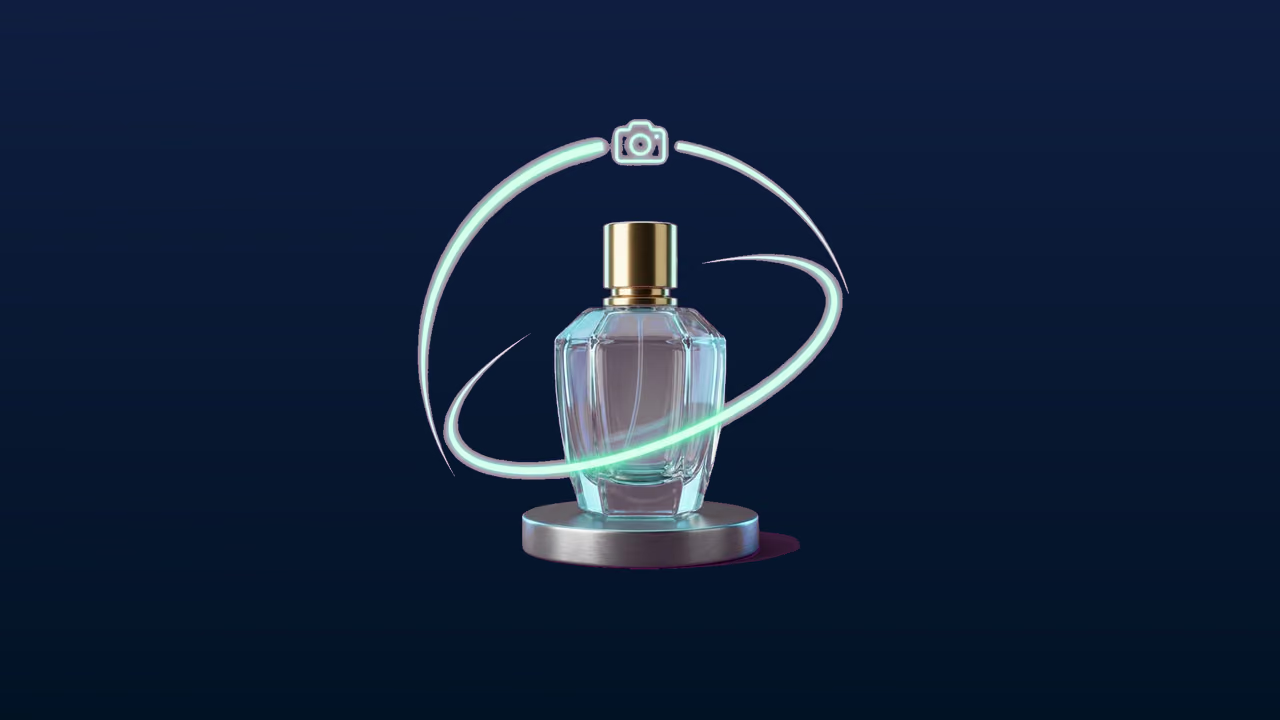
A still photo tells a shopper what a product looks like. A few seconds of motion tell them what it would be like to hold it: how light travels across the finish, how the lid opens, how the proportions read from the side. That is why a 3D product video earns its place on a product page, and why the same clip does double duty as an ad creative.
You do not need a studio day to get one. Sloyd Video Studio turns a photo or a prompt into a clip, lets you reuse the motion from a clip you already like, and extends an individual clip. To combine separate shots into a finished sequence, download their MP4s and assemble them in an external editor. When a shot needs narration or a sound effect, Sloyd Audio sits in the same account. This guide walks through what each workflow does, how to reuse an existing motion video, and how to build a full product video from separate shots.
The Three Video Studio Workflows for Product Video
Video Studio opens on a Create, Edit, and Motion segment. Each one is a different way into a clip, and product work usually touches all three.
Create: Turn a Prompt or Photo Into Motion
Create starts from a description of the scene. You can optionally set a Start image and an End image to animate a still and land the shot on a specific frame, add reference images, videos, or audio to hold a look, style, or sound, and toggle Loop so the clip ends on its start frame. This is the route when you have a product photo or a clear idea and want a new shot built around it.
Edit: Restyle or Extend a Clip
Edit takes a source video you already have. Keep its length to restyle the clip into a new look, or add seconds with Extend to continue the action past where the source stopped.
Motion: Reuse a Move From Any Clip
Motion pairs a Subject image with a Motion video. The subject performs the same moves as the motion video while keeping its own appearance, so the reference guides the movement and nothing else. This is how you reuse an existing motion video or swap a product into a move you already like.
How to Start a Product Clip From a Photo or a Prompt
If you have one good photo, use Create and set it as the Start image, then describe the shot. If you do not, describe the scene from scratch. Either way, keep it to one subject, one camera move, one thing happening.
Write the Prompt Around the Material
Name the material, the light, and the one movement. Leave the rest alone, because every extra instruction competes with your product for attention.
Try: "The camera pushes in slowly on the bottle, warm studio light sweeps across the glass, faint dust in the air, the product stays centered and in focus."

The frame above is from a clip that started as one still image of a prop and a prompt describing a slow push in. The subject does not matter to the workflow: a bottle, a sneaker, or a chest all follow the same steps. If you want to land on packaging or a logo, set that image as the End image and the clip will arrive there.
Pick the Camera Move Instead of Describing It
Video Studio has camera presets, which are more reliable than prose: Auto, Push in, Pull back, Orbit, Follow, and Locked. For product work, Push in and Orbit do most of the heavy lifting, and Locked is the one to choose when the product must not drift out of frame.
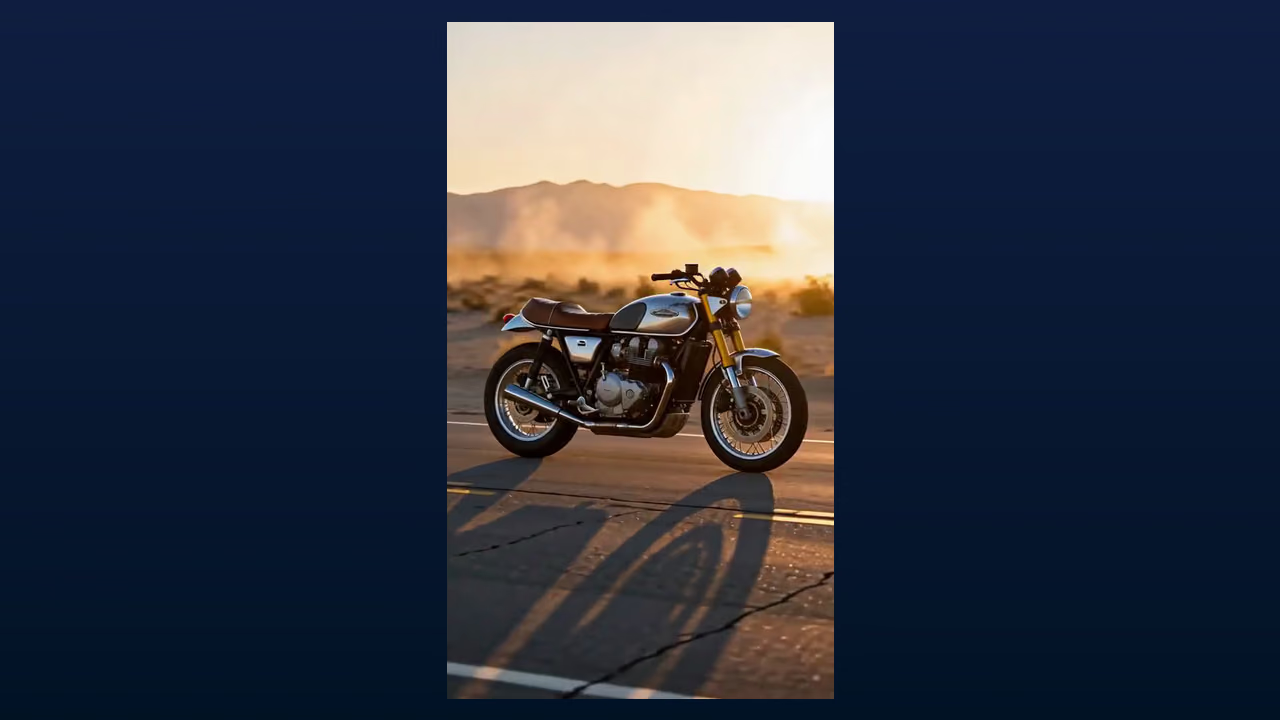
Each clip comes back with sound generated alongside the picture, so it arrives with ambience instead of silence. You never pick a model: Sloyd routes each shot for you, so the decision you make is about the shot rather than the engine. If you want a 3D asset to build a scene around first, text to 3D and image to 3D feed straight into the same account, and text to image gives you a Start image when you do not have a photo.
How to Reuse an Existing Motion Video to Animate Your Product
The fastest way to a clip that already moves well is to borrow the movement. In the Motion workflow you give Video Studio a Subject image of your product and a Motion video whose movement you want to copy. The result keeps your product's look while performing the same moves as the reference.
Swap a Product Into a Video You Already Have
Point the Motion video at a clip you already have, set your new product as the Subject image, and the move carries over to the new product without reshooting it. A move you got right once becomes a template you can apply to the next SKU, so a product line can share one consistent motion. That is the whole workflow: one Subject image plus one Motion video in, one clip out.
Build a Full Product Video: Extend in Studio, Assemble Outside
A single generation is one shot, and shots run 1 to 15 seconds with a default of 5. Video Studio can extend an individual shot; it does not stitch separate shots together.
- Extend adds seconds to a source clip in the Edit workflow, continuing the action past where it stopped.
- Assemble separate shots by downloading their MP4s and cutting them together in an external video editor, so a reveal, a push in, and a detail hold become one sequence.
Think in shots while you generate and in sequences while you assemble. One product, one move, one beat per shot, then extend a clip in Video Studio or download the shots to cut them together in an external editor. Edit, Extend, and animated-frame clips inherit the source clip's aspect ratio, so set the frame you want before you start a sequence.
Which Aspect Ratio to Use for PDPs, Ads, and Social
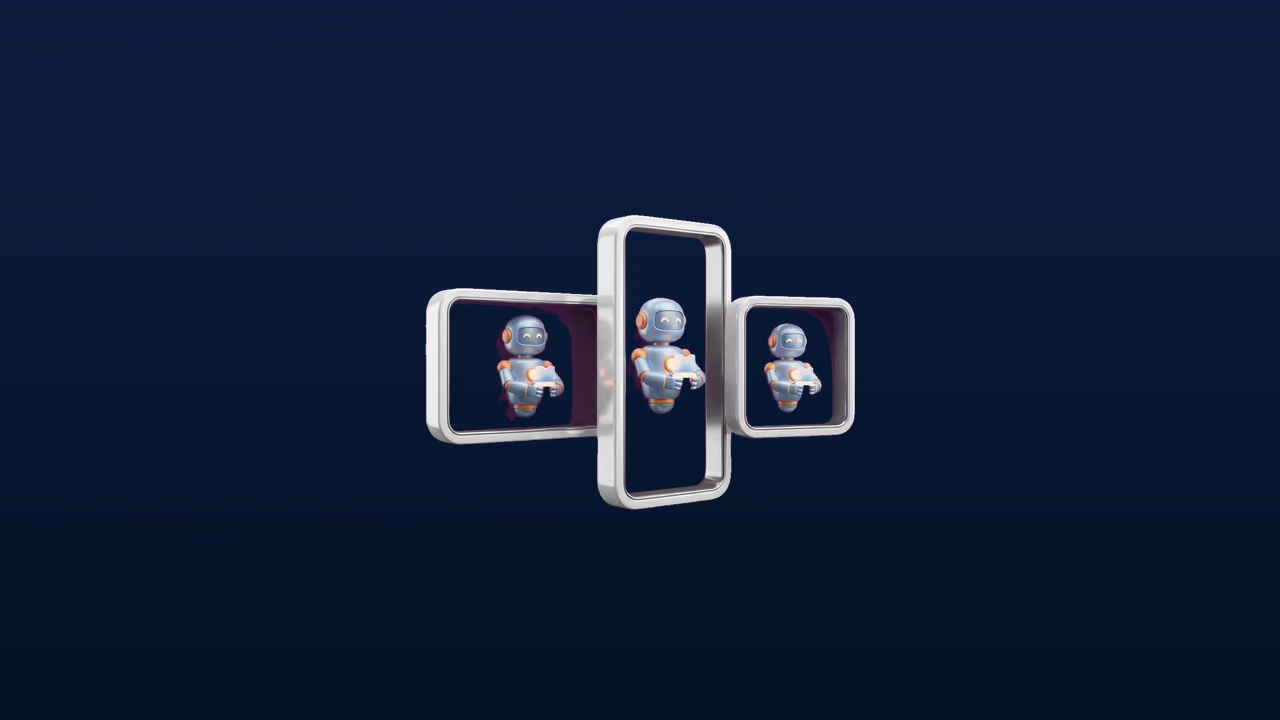
Pick the frame before you generate, not after. Cropping a 16:9 clip into a vertical ad reframes the product badly, and re-rendering costs less than fixing it in an editor.
| Placement | Aspect ratio | Why |
|---|---|---|
| Product page gallery | 1:1 or 4:3 | Matches the still images already in the carousel |
| Product page hero or banner | 16:9 | Sits in the page width without letterboxing |
| Reels, Shorts, and TikTok | 9:16 | Full-screen vertical, no bars |
| Paid social feed | 1:1 or 3:4 | Takes up more of the feed than landscape |
| Marketplace and email | 16:9 or 1:1 | The safest pair across templates |
| Site-wide or launch banner | 21:9 | Cinematic strip that crops cleanly on mobile |
Video Studio offers 16:9, 9:16, 1:1, 21:9, 4:3, and 3:4 at 480p, 768p, or 2K. Where a platform asks for 4:5, render 3:4 and crop, or render 1:1 and let the feed frame it. Lower the resolution for small on-page loops to keep the page fast, and keep 2K for ads and hero placements. Generated clips download as MP4.
Common Mistakes With 3D Product Videos
- Asking for too much in one shot. One product, one move, one beat. Cut several short shots together instead of requesting a mini commercial in a single generation.
- Reshooting a move you already have. If a clip already moves the way you want, reuse it through the Motion workflow instead of describing it from scratch.
- Generating before choosing the aspect ratio. Set 9:16 for Reels and 16:9 for the page hero up front, and remember that Edit and Extend clips inherit the source ratio.
- Shipping a 2K loop on the product page. Lower the resolution for on-page loops and keep 2K for ads.
- Leaving sound to chance. Clips come back with generated sound, but a specific line or effect should be made on purpose with Sloyd Audio.
FAQ
How do I make a 3D product video from a photo?
Open Video Studio, use the Create workflow, set the product photo as the Start image, describe one camera move such as a slow push in, choose the aspect ratio, and generate. Each shot is 1 to 15 seconds, default 5, and Extend continues it when you need more.
Can I swap my product into a video I already have?
Yes. Use the Motion workflow: give it your product as the Subject image and the clip whose movement you want as the Motion video. The result keeps your product's look while copying the reference's moves, so you can apply one move across a whole product line.
How do I make a longer video than a single shot?
Extend adds seconds to an individual source clip in Video Studio. To combine separate shots into a full sequence, download their MP4s and cut them together in an external video editor; Video Studio does not stitch shots together.
What format do clips and audio download as?
Generated video downloads as MP4. Sloyd Audio downloads as an MP3. Audio is part of Sloyd Plus and Sloyd Pro: it reads a voice from the library and makes sound effects, and it does not clone a real person's voice or generate music. For a wider comparison, see our guide to ElevenLabs alternatives for sound effects and voice.
Which AI model generates the video?
You do not pick one. Sloyd routes each shot, whether you are creating, animating a still, editing, extending, or copying a motion, so the decision you make is about the shot rather than the model. If you want to see how that compares with tools that do expose a model list, read our Runway alternatives comparison.
Start Your Product Videos in Video Studio
A product video stops being a project once a clip comes straight from a photo, a prompt, or a move you already like. Start from a photo in Create, reuse a move with Motion, extend individual clips in Video Studio, and assemble downloaded MP4 shots in an external editor for a full video. Render a 9:16 MP4 for social and a 16:9 for the page.
Start a clip in Sloyd Video Studio, add narration or effects with Sloyd Audio, and see what 3D does for a storefront on the e-commerce page or for assets on the game development page. Ready to generate? Open Video Studio and compare plans on the pricing page.