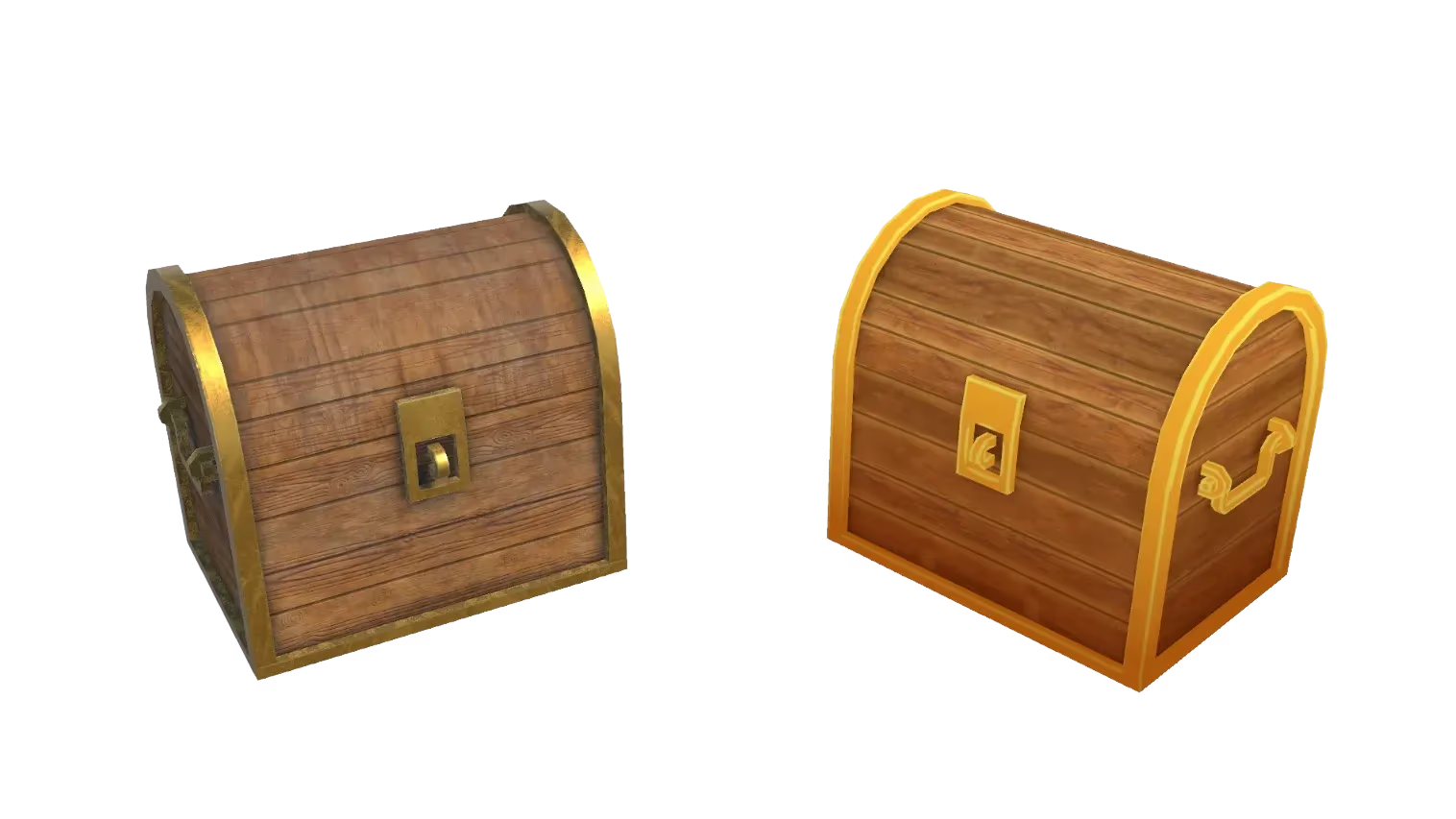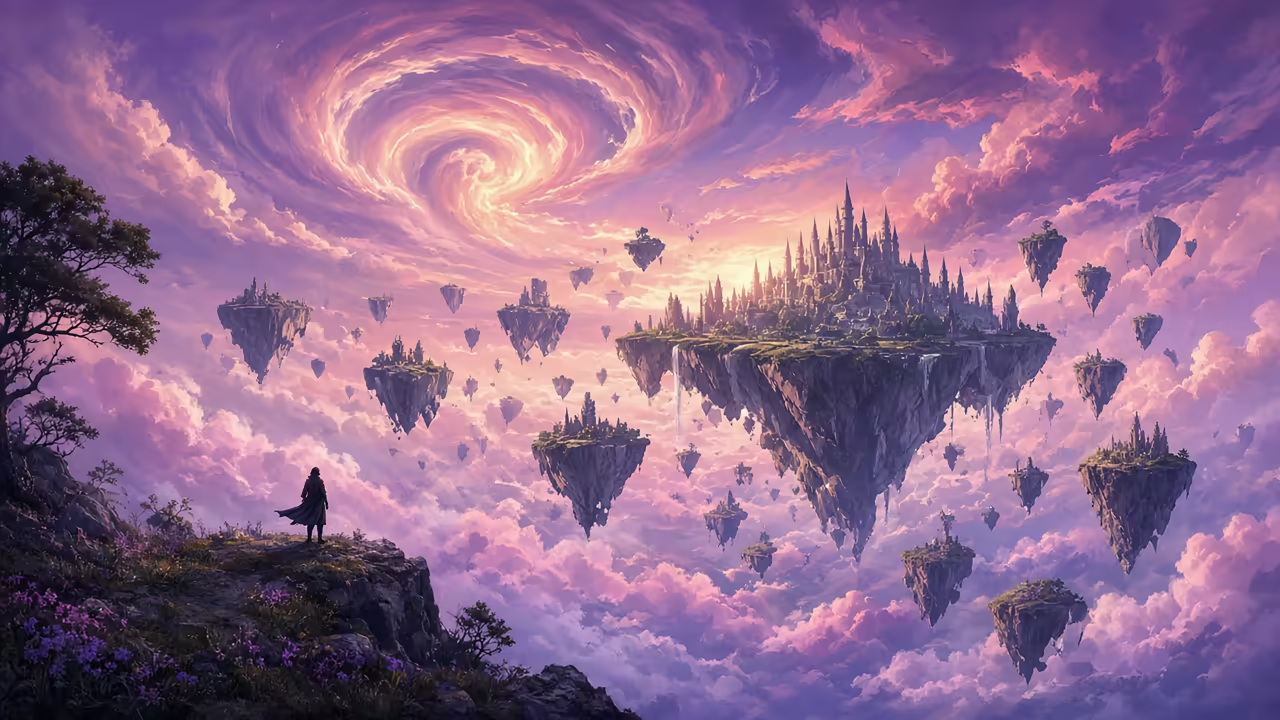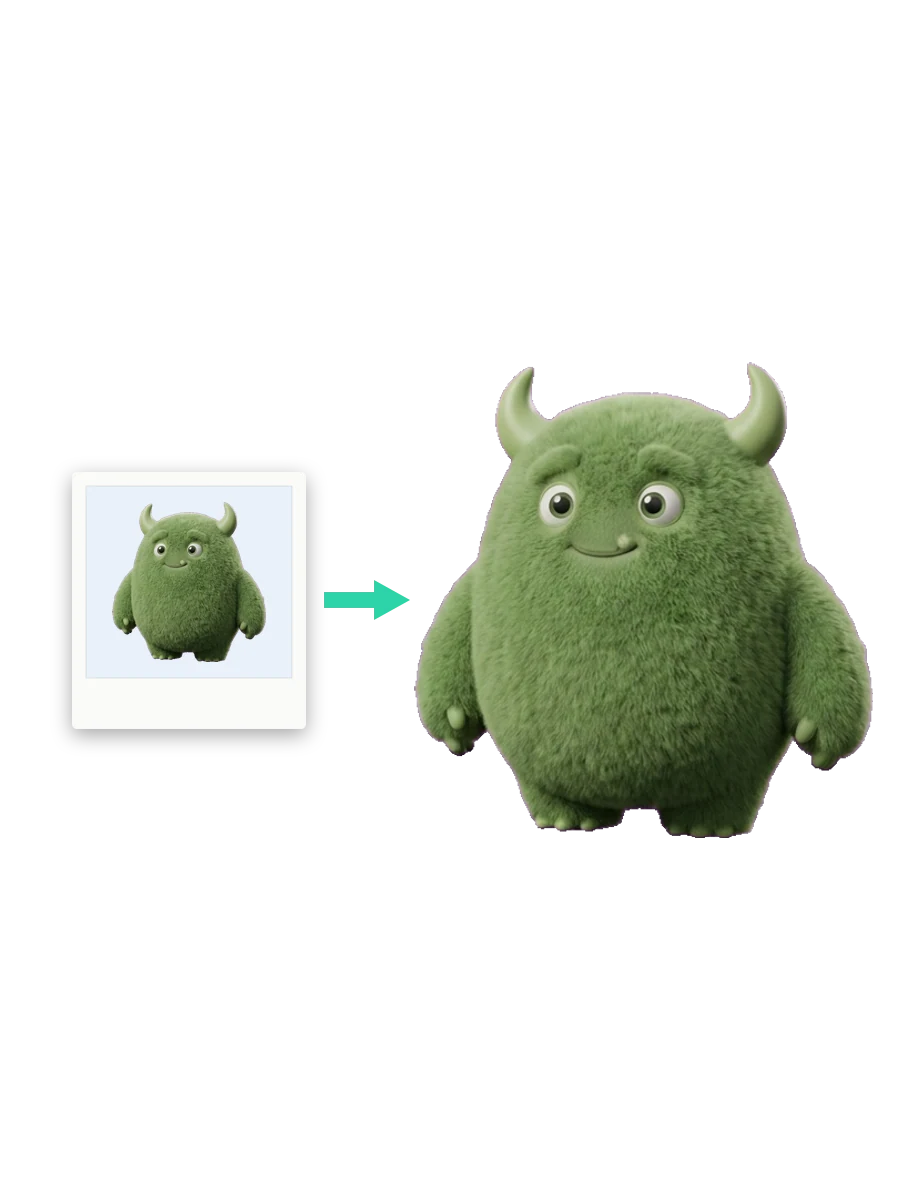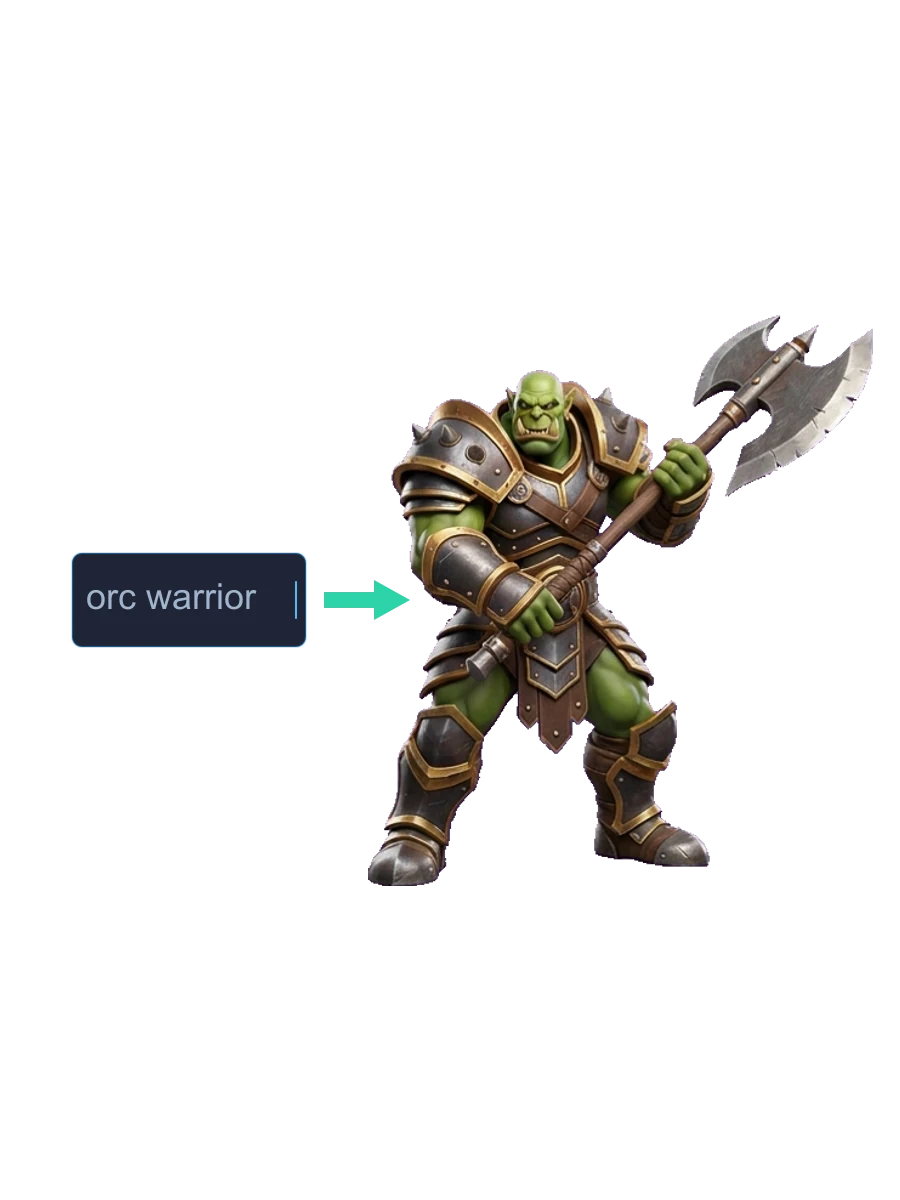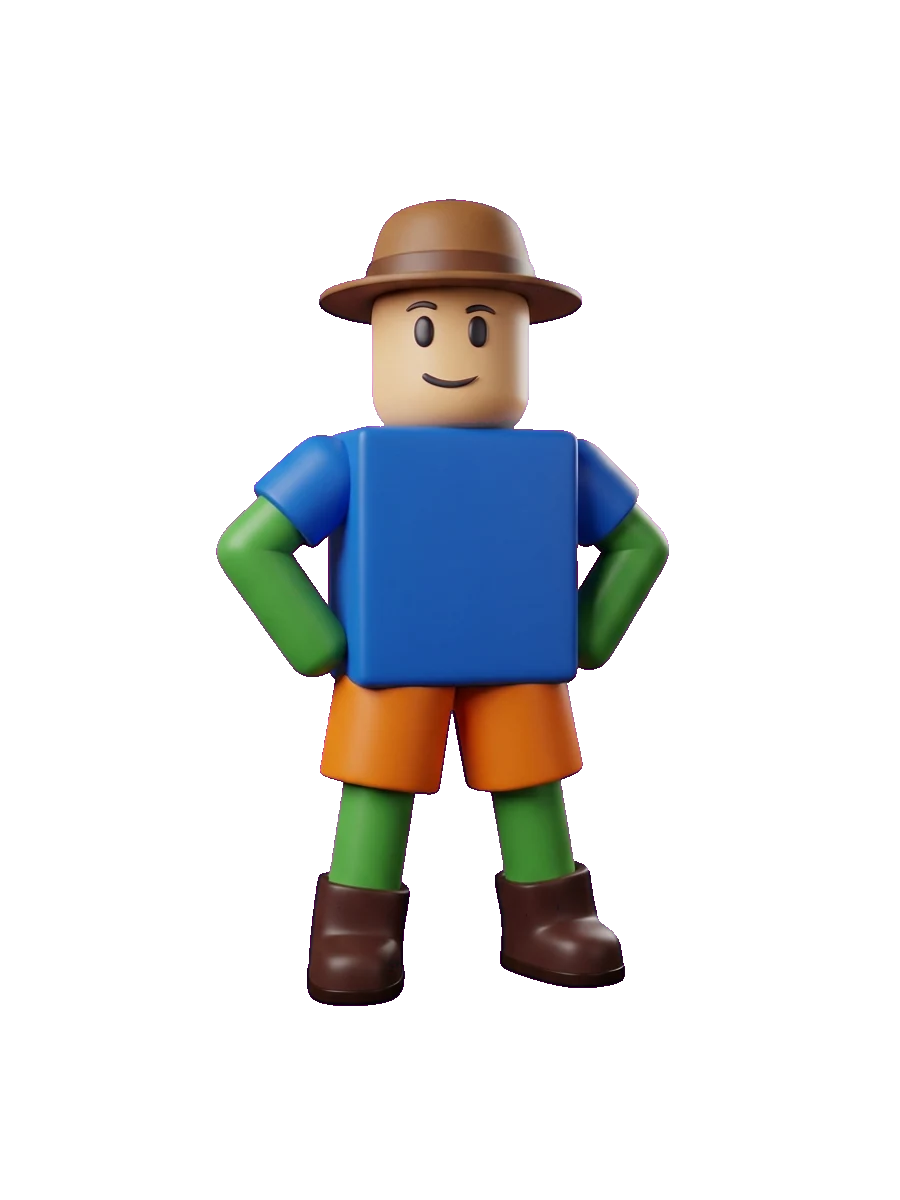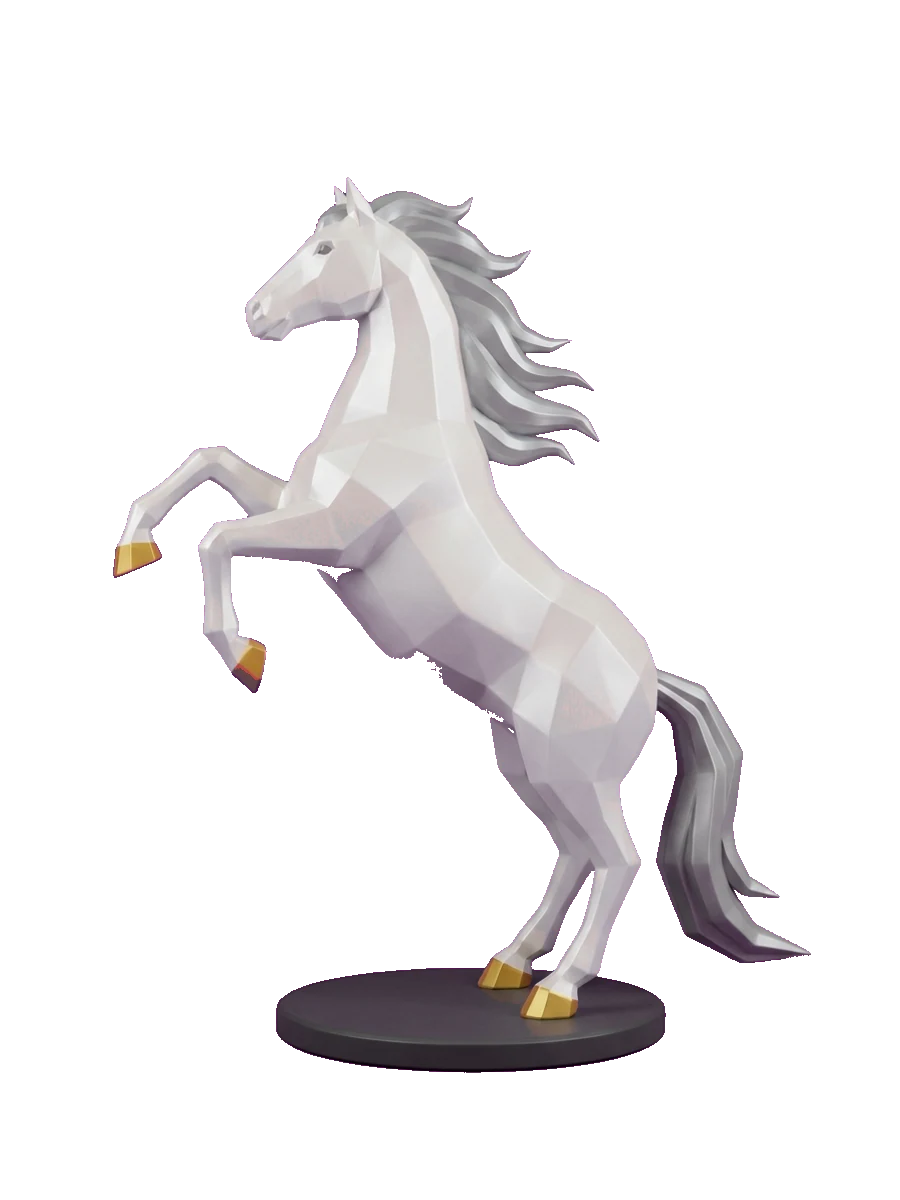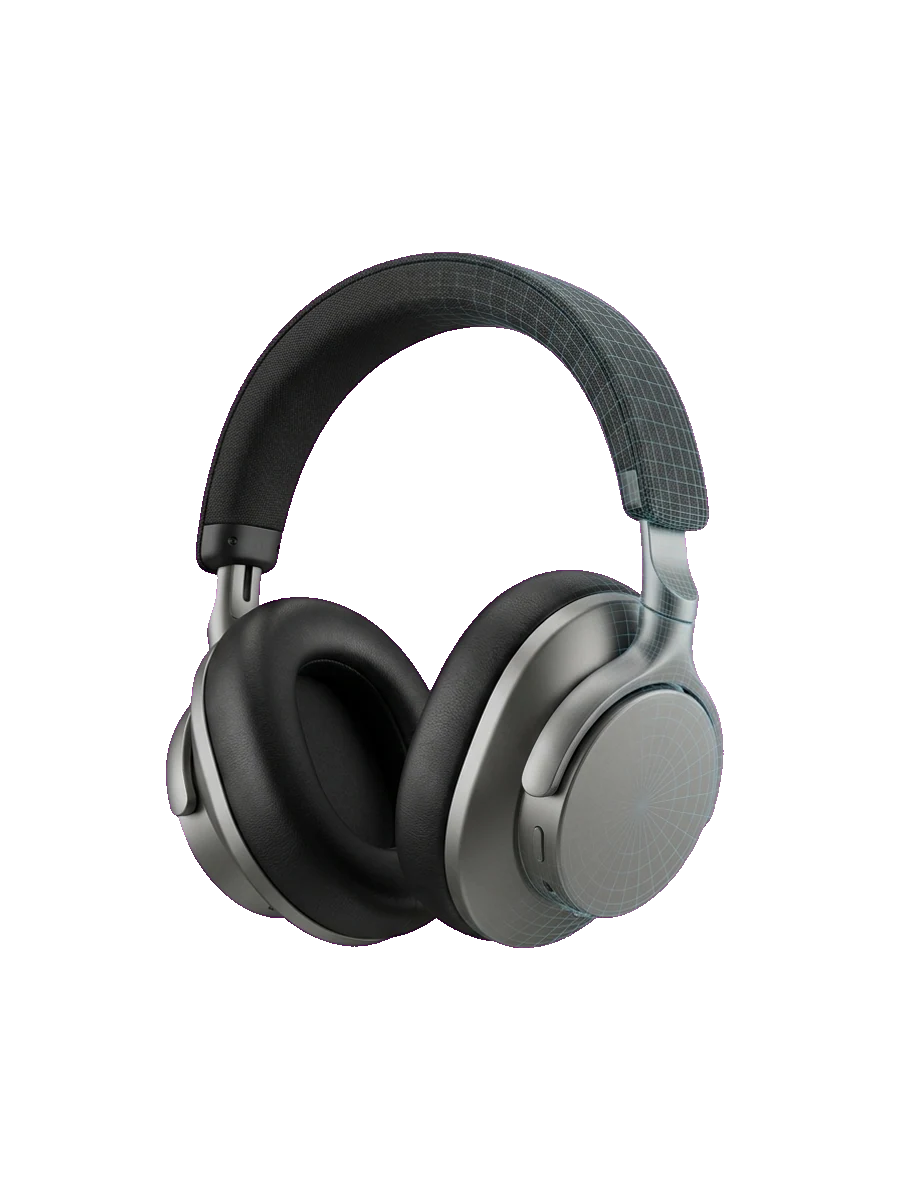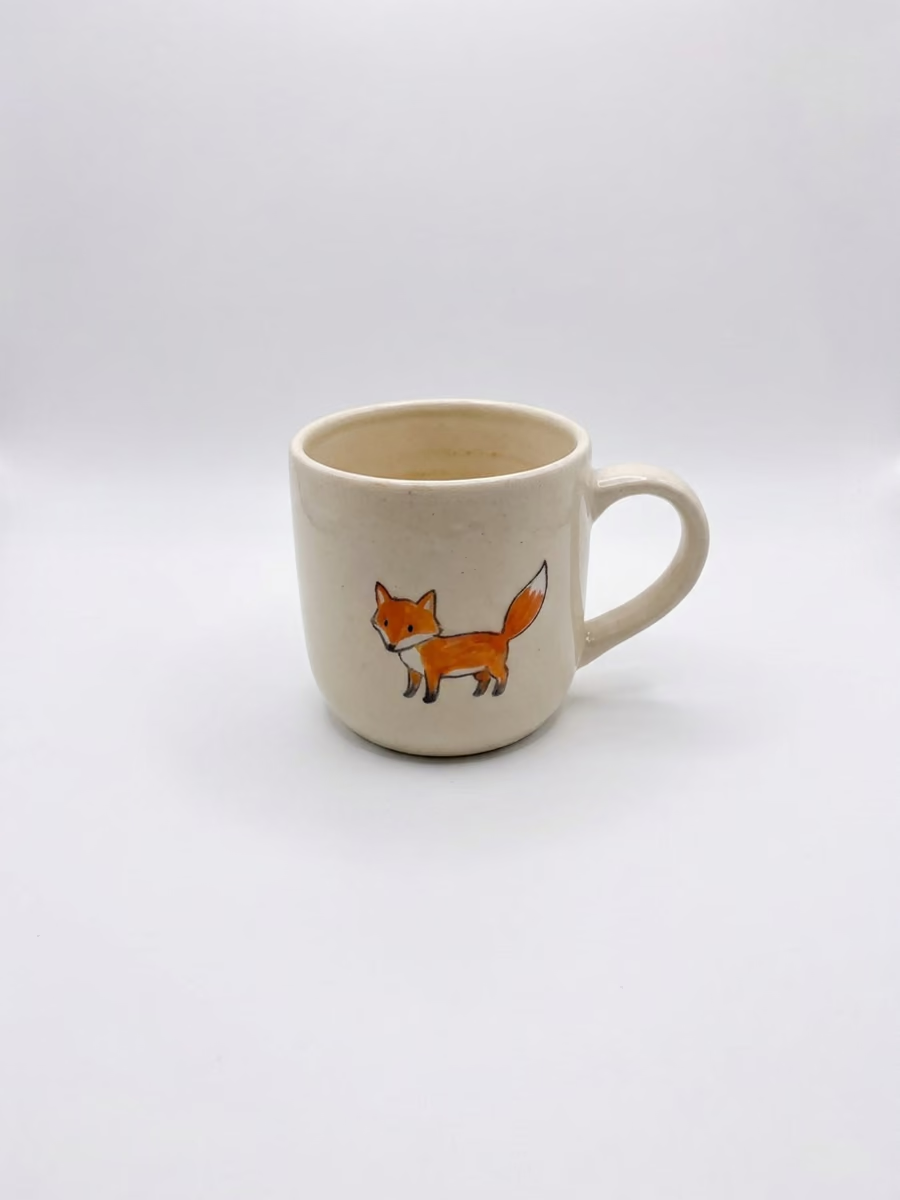
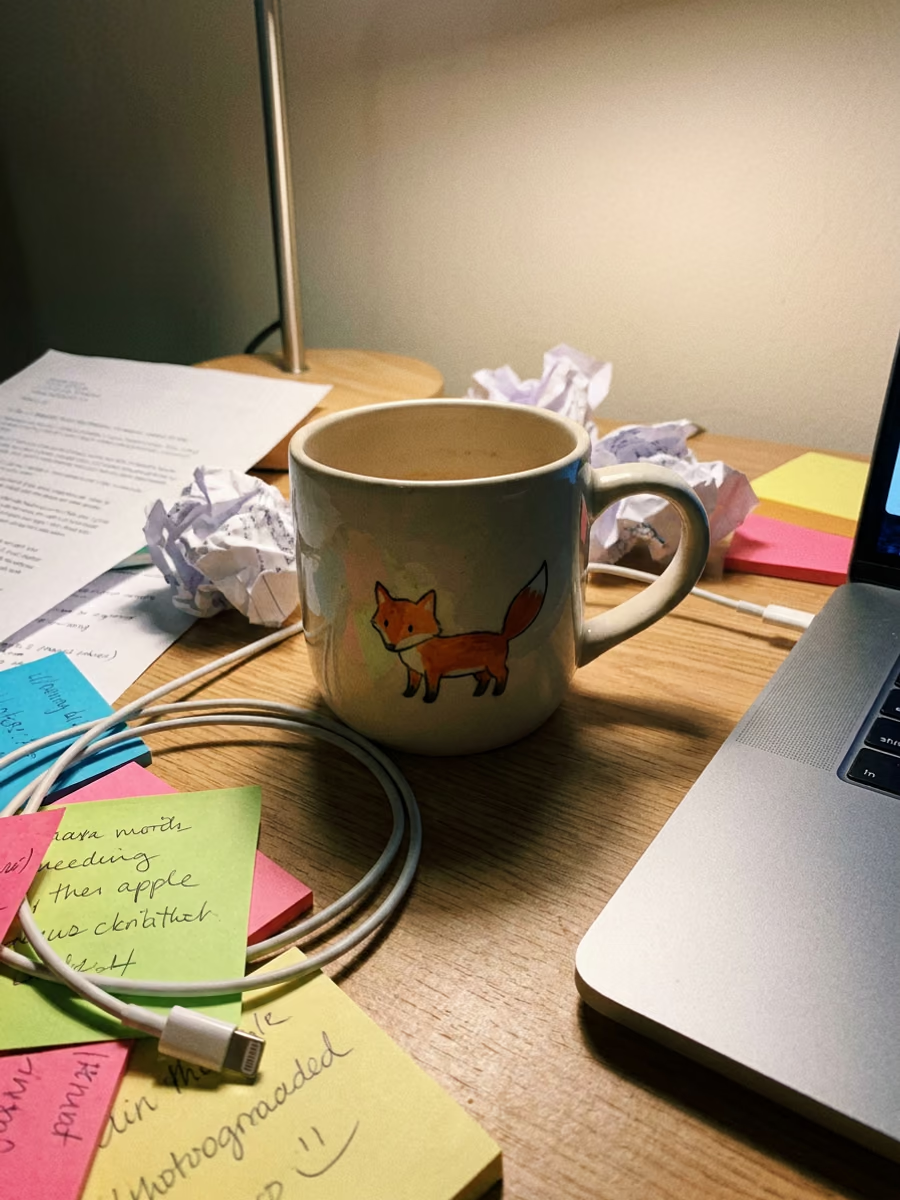
Remove the Background
Lift a product out of a messy scene and place it on a clean white background, centered and fully visible. Ready for listings.
Quick Fix: Clean background
Upload any image and describe the change. Swap seasons, remove backgrounds and objects, recolor products, change poses, or restyle a photo. No masking, layers, or Photoshop skills needed.
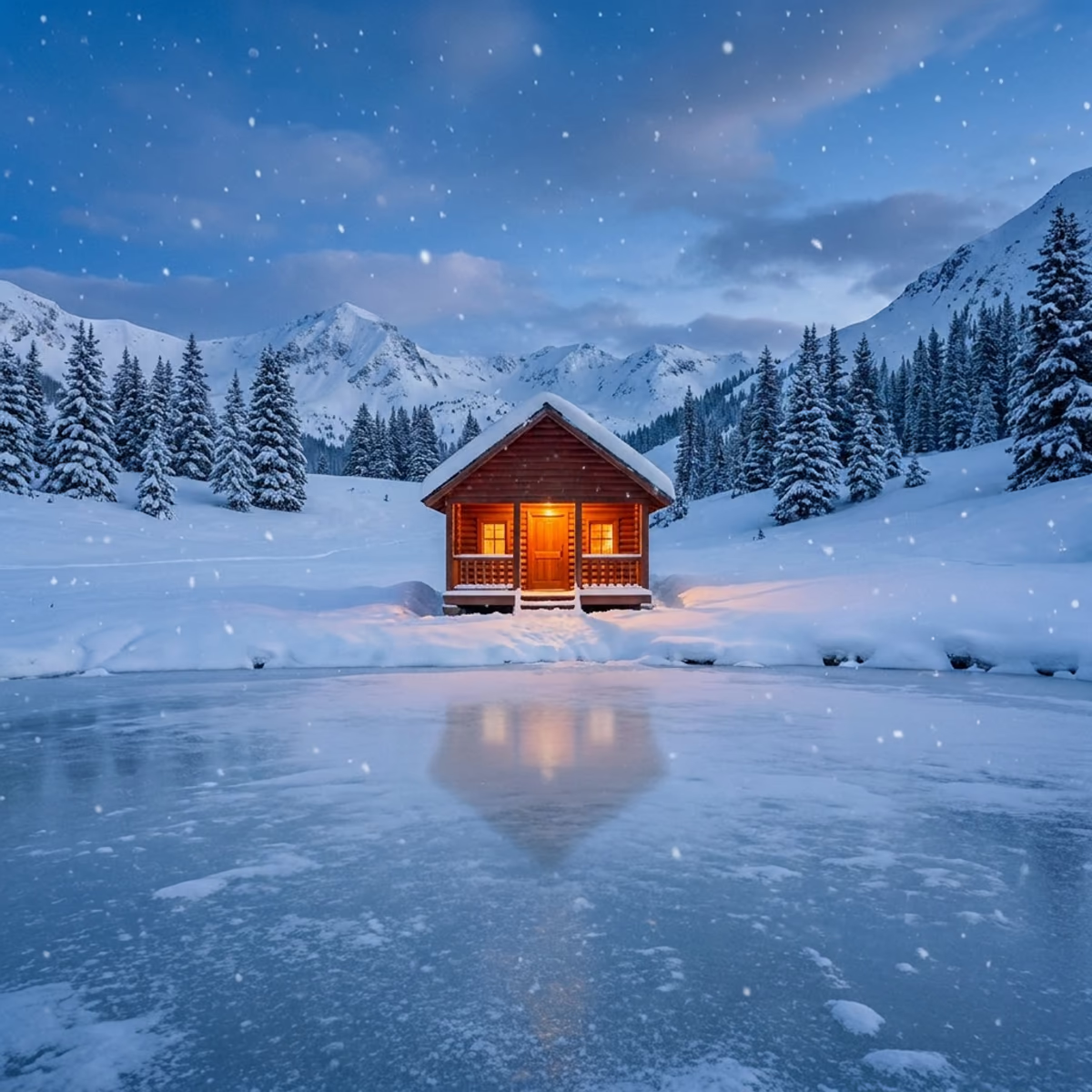
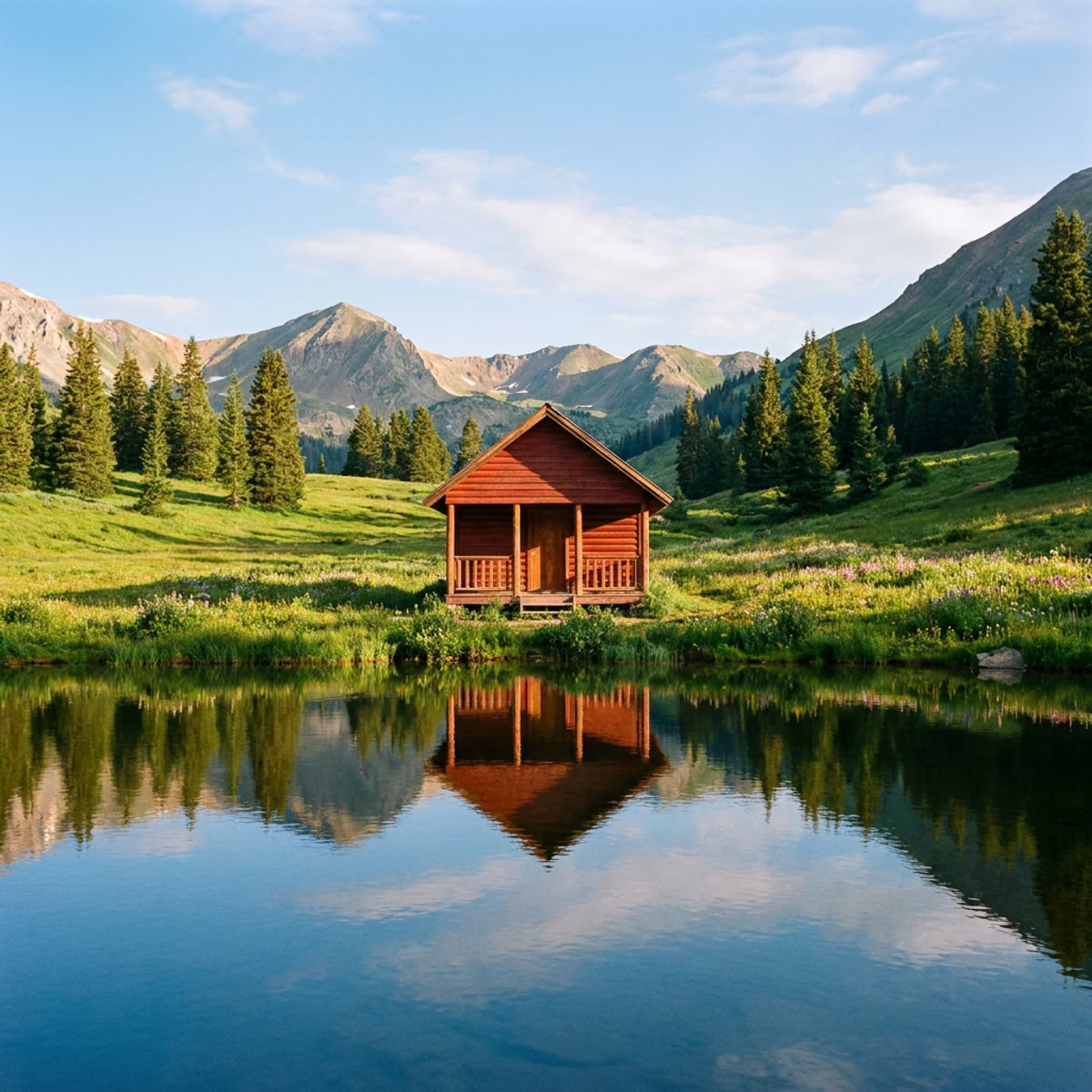
Each example below is a real edit: one uploaded image and one instruction. Use a Quick Fix preset, or type exactly what you want to change.
Lift a product out of a messy scene and place it on a clean white background, centered and fully visible. Ready for listings.
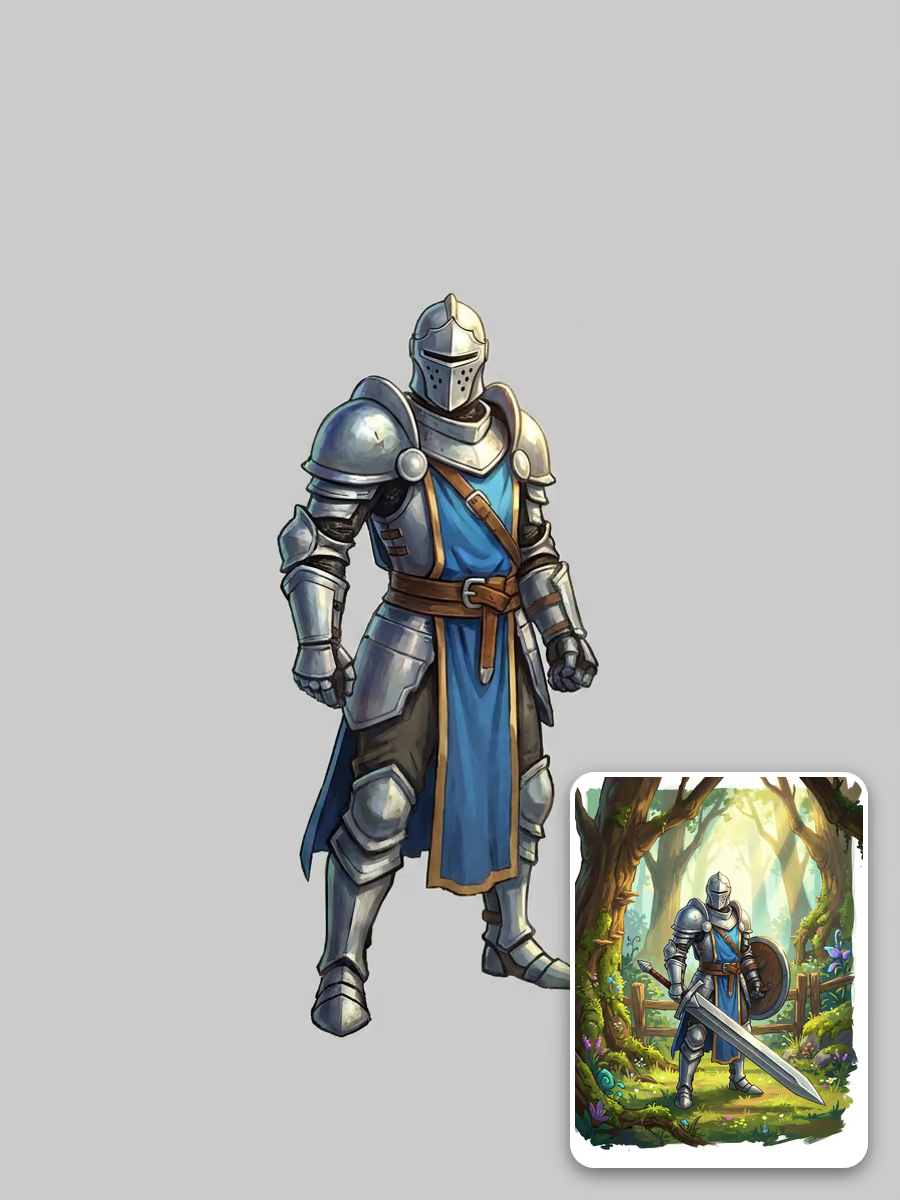
Strip away swords, shields, scenery, and clutter while the subject and its pose stay exactly the same.
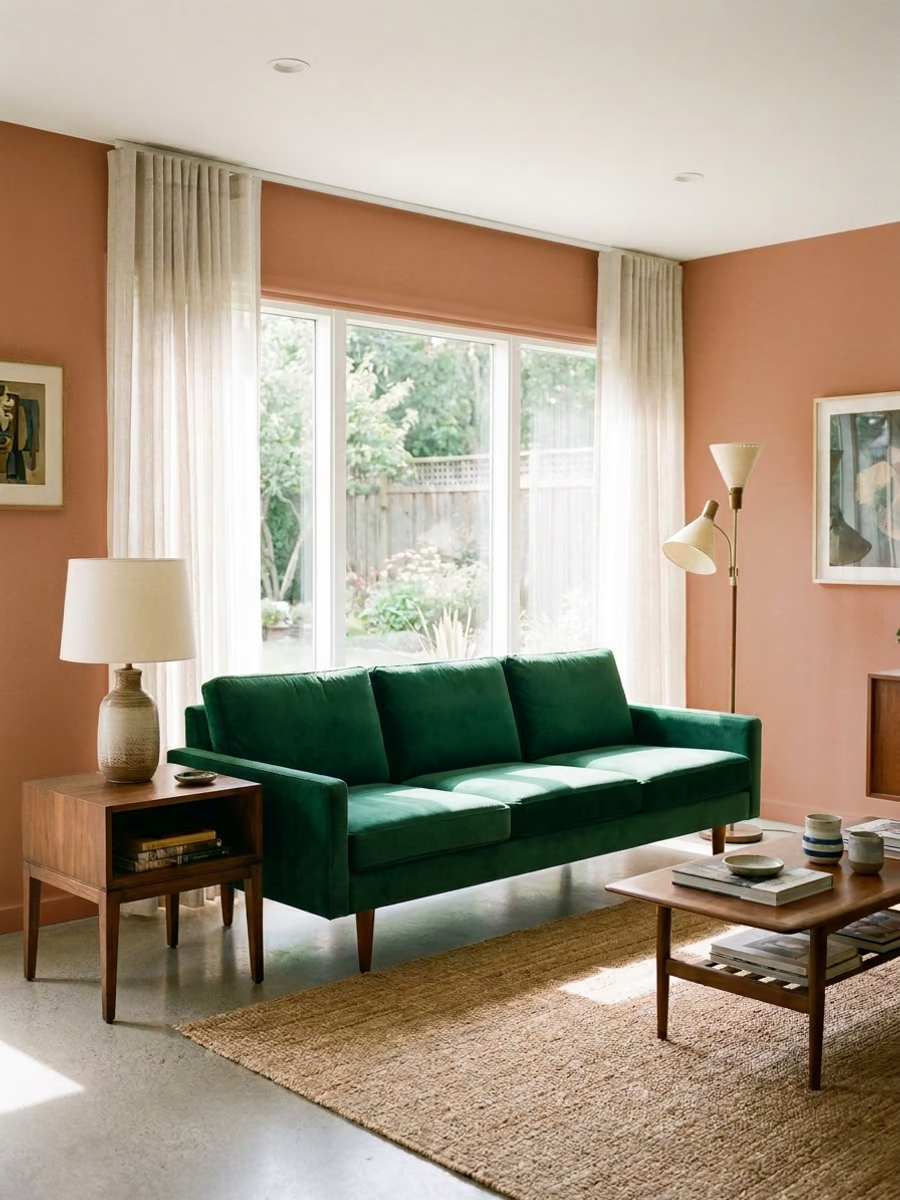
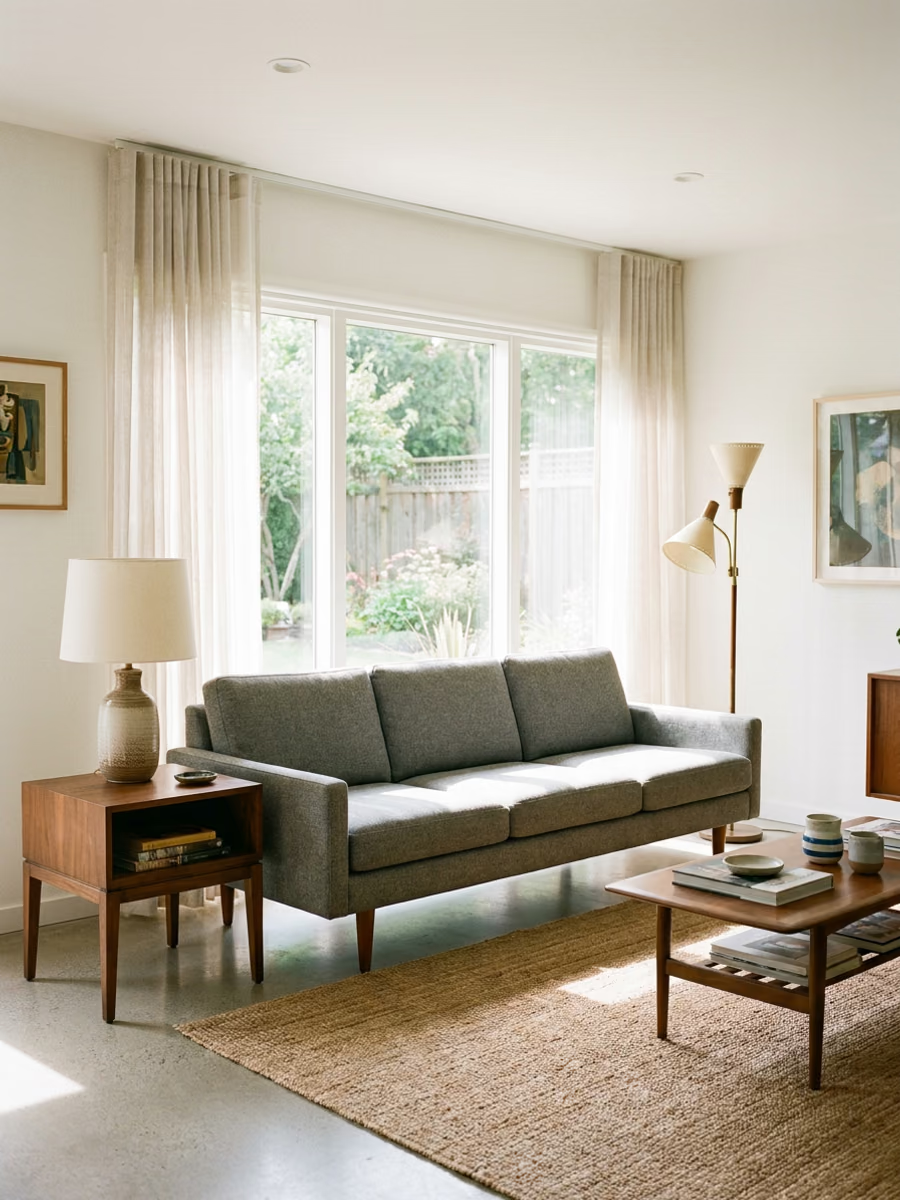
Try new colors and materials on furniture, walls, and products. The room, camera angle, and lighting stay the same.
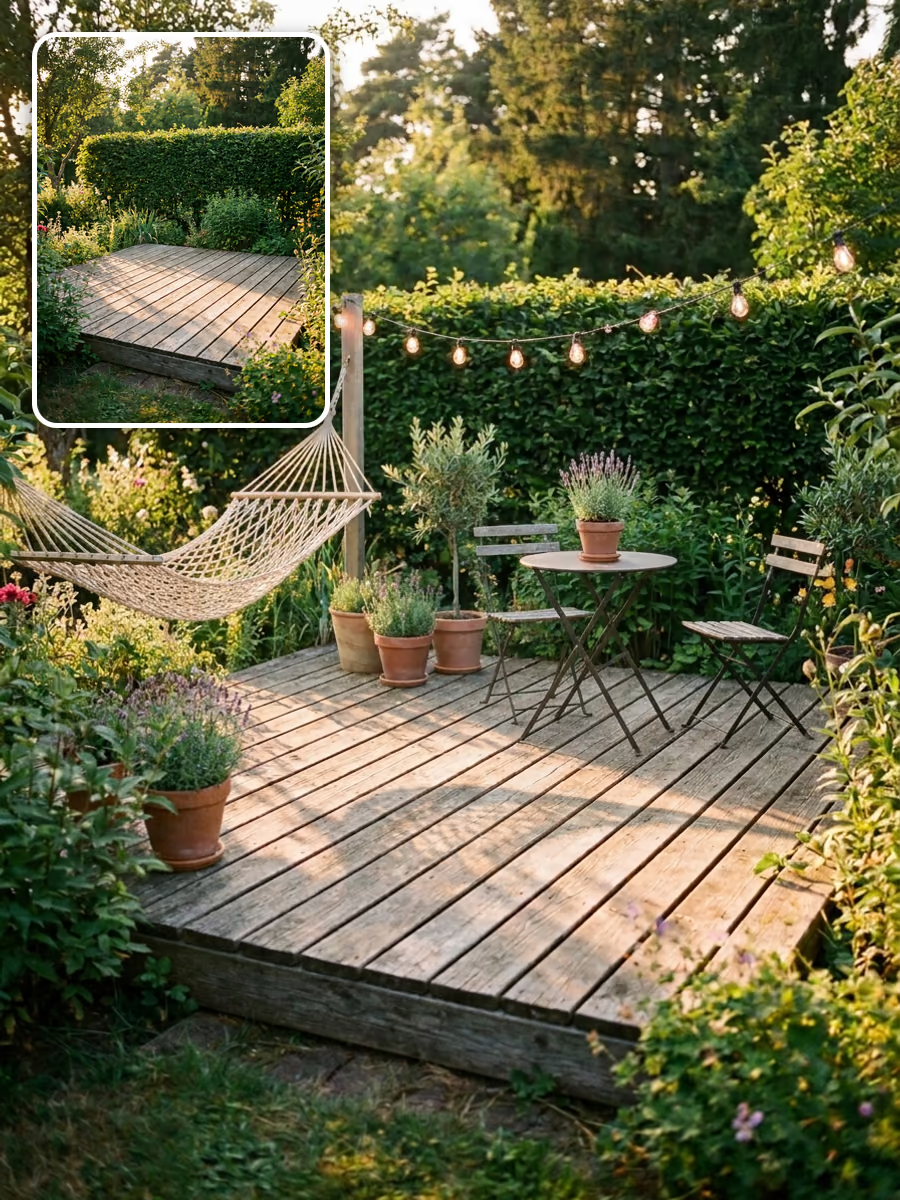
Stage an empty space by describing what belongs there. New objects match the perspective and light of the original photo.
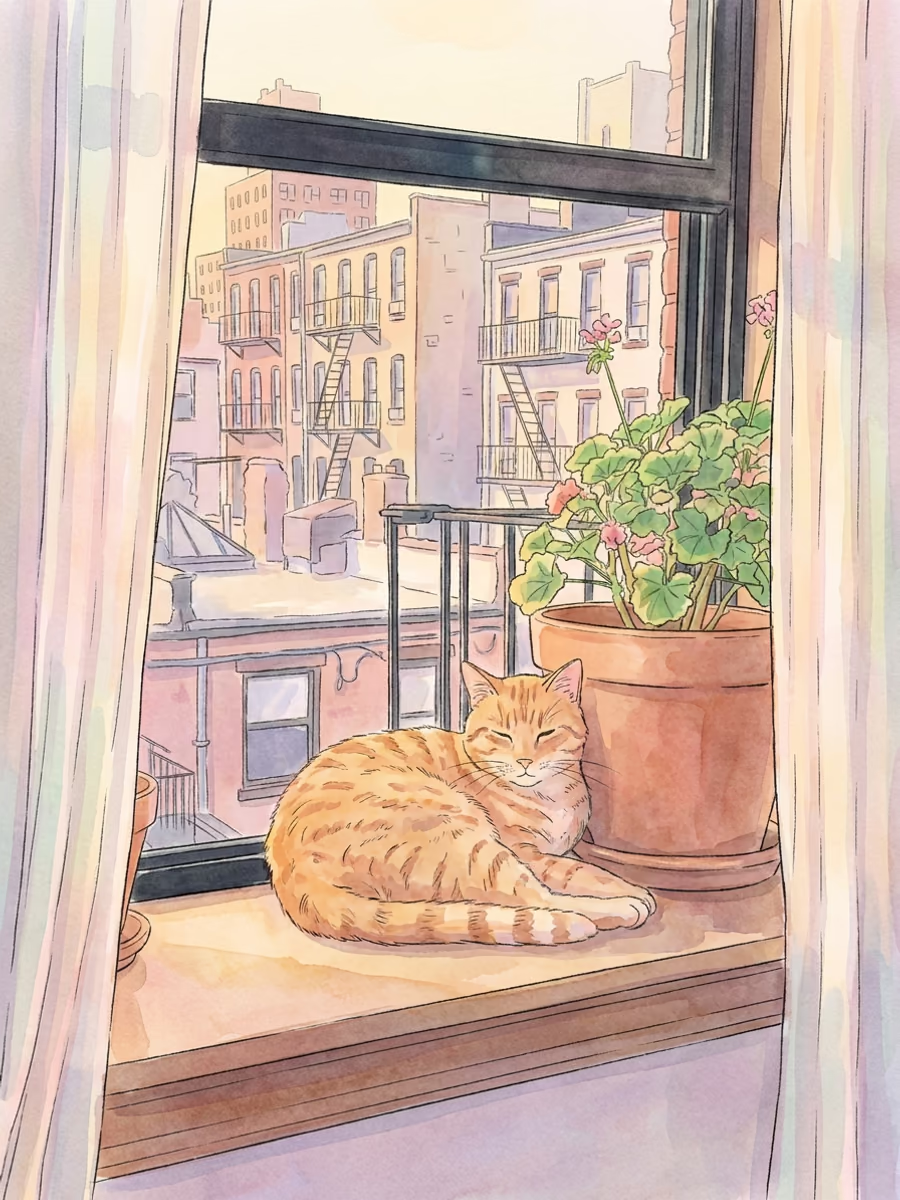
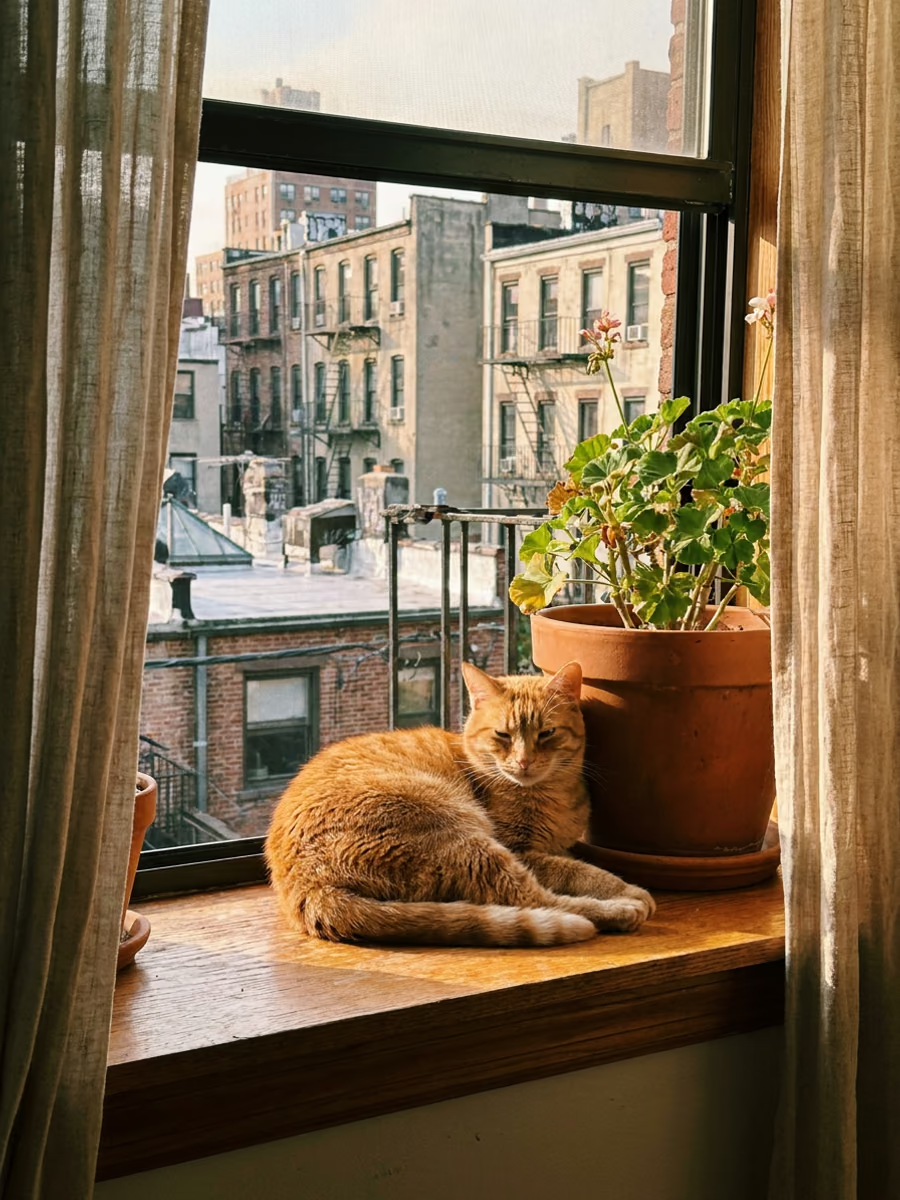
Turn a photo into anime, watercolor, or illustration while keeping the subject and composition, or apply one of your own custom styles.
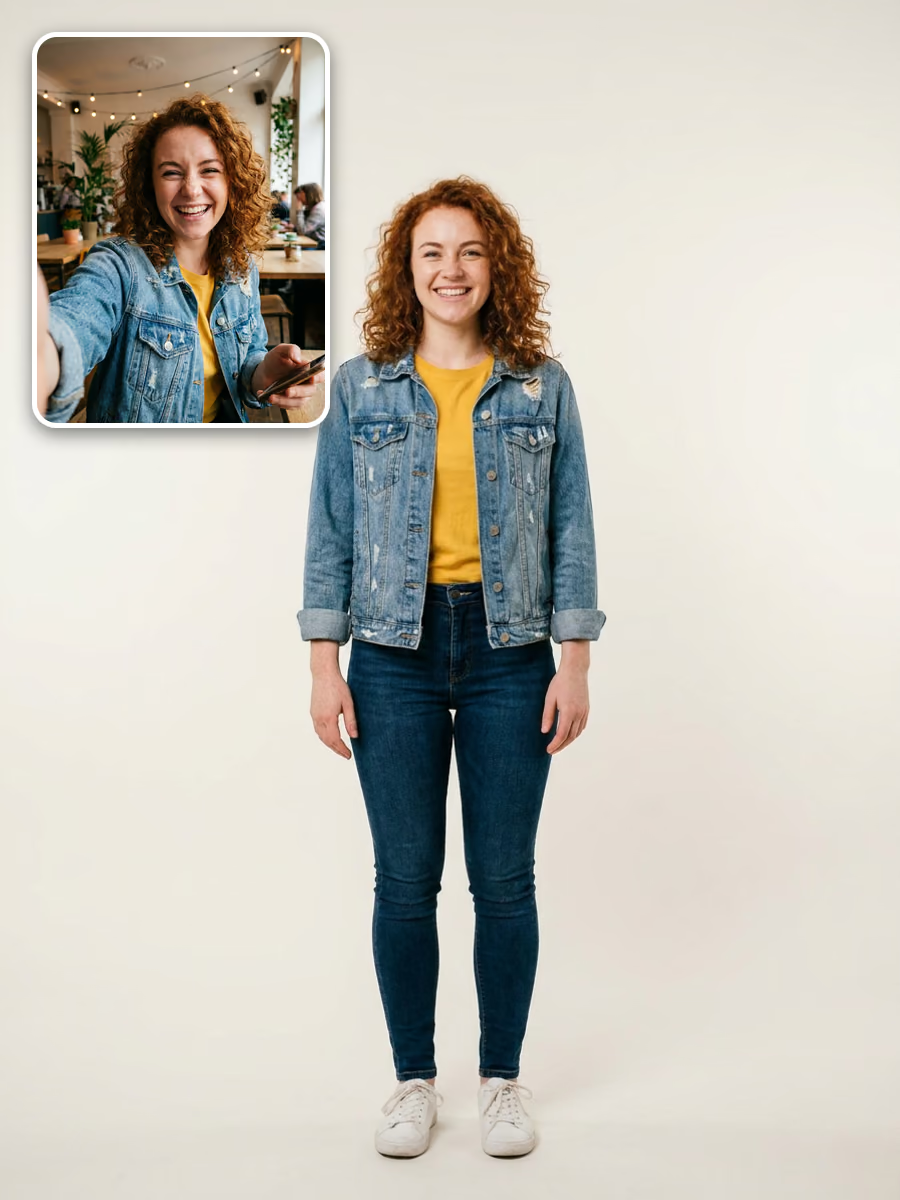
Extend a head-and-shoulders selfie to a full standing figure with the same face, hair, and outfit. A great start for a personal avatar.
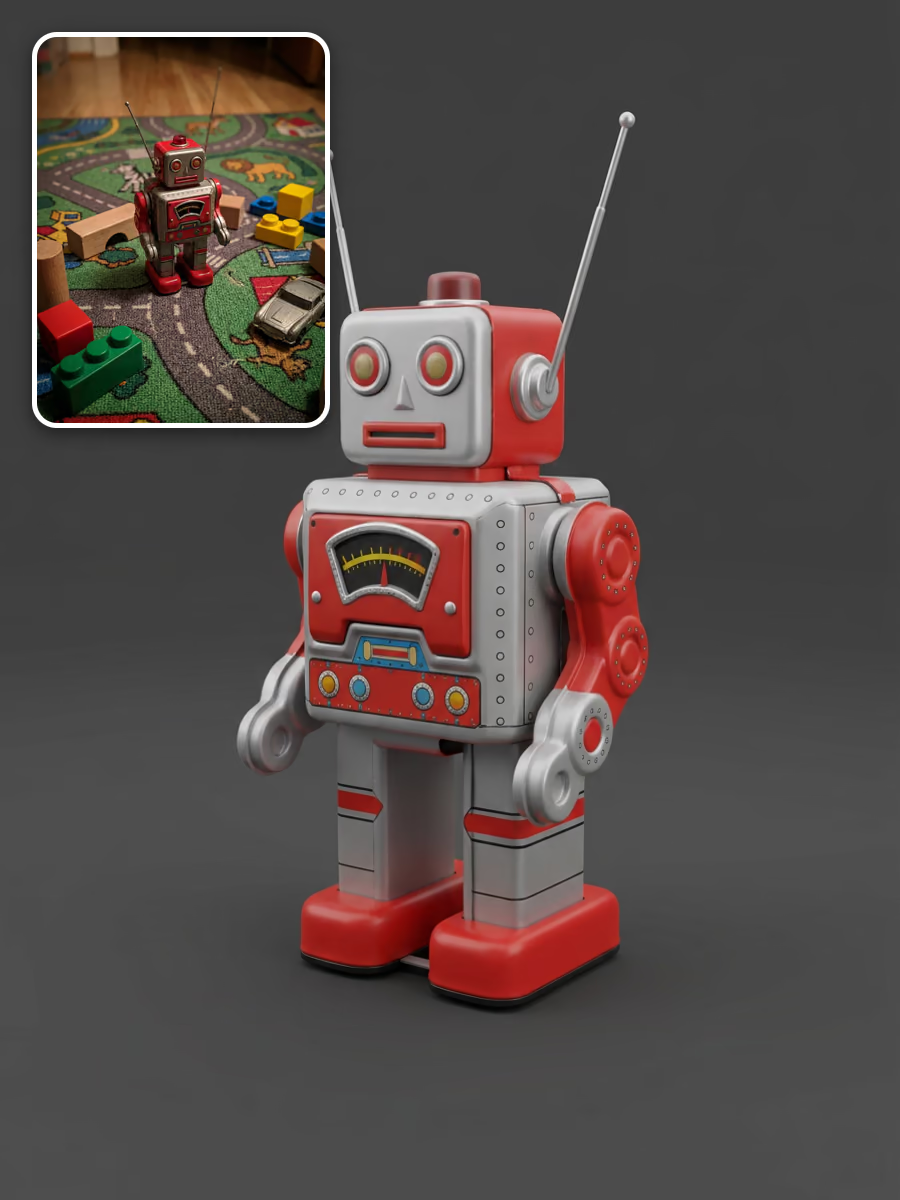
Isolate the subject, neutralize the lighting, and smooth the surfaces so a casual snapshot converts cleanly with Image-to-3D.
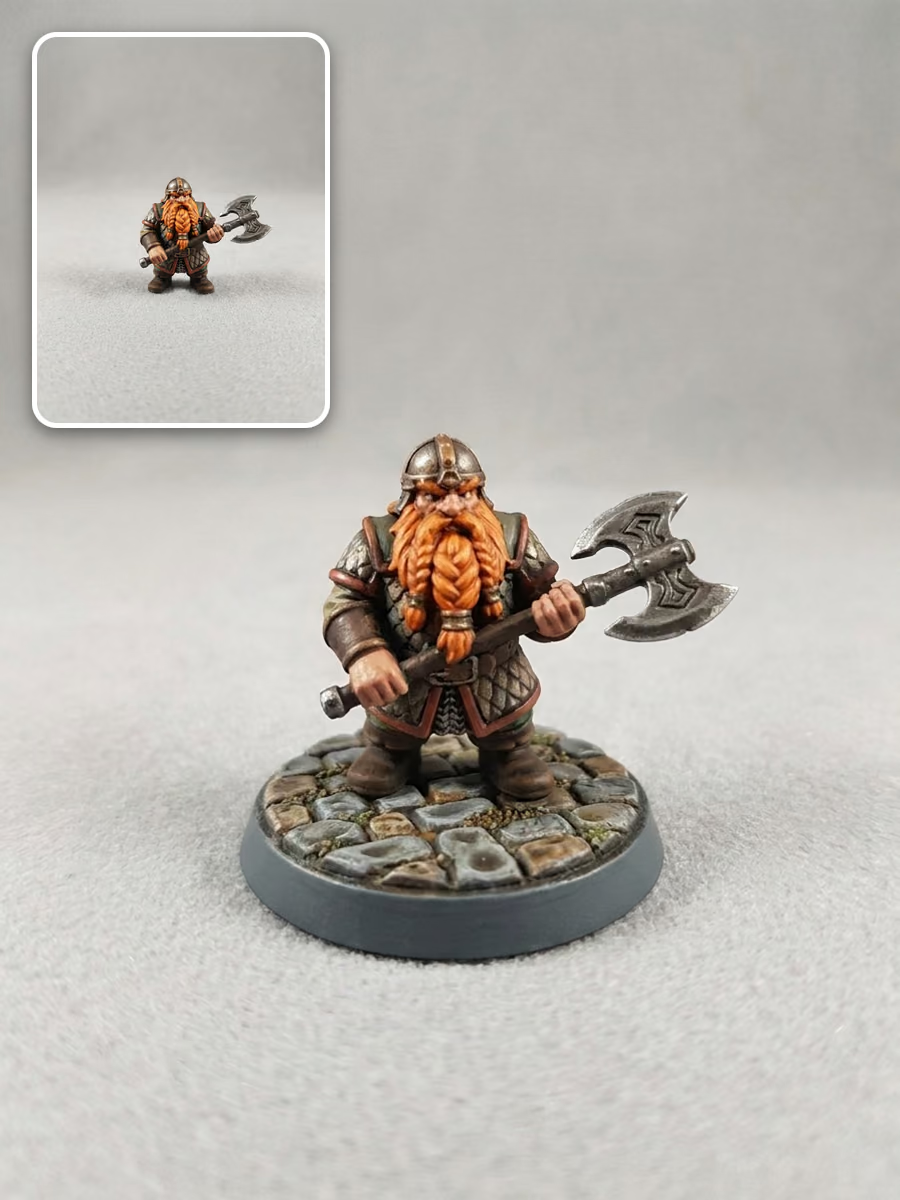
Pick a round, cobblestone, plinth, or pedestal base to put under a figure, so your 3D printed miniature can stand.
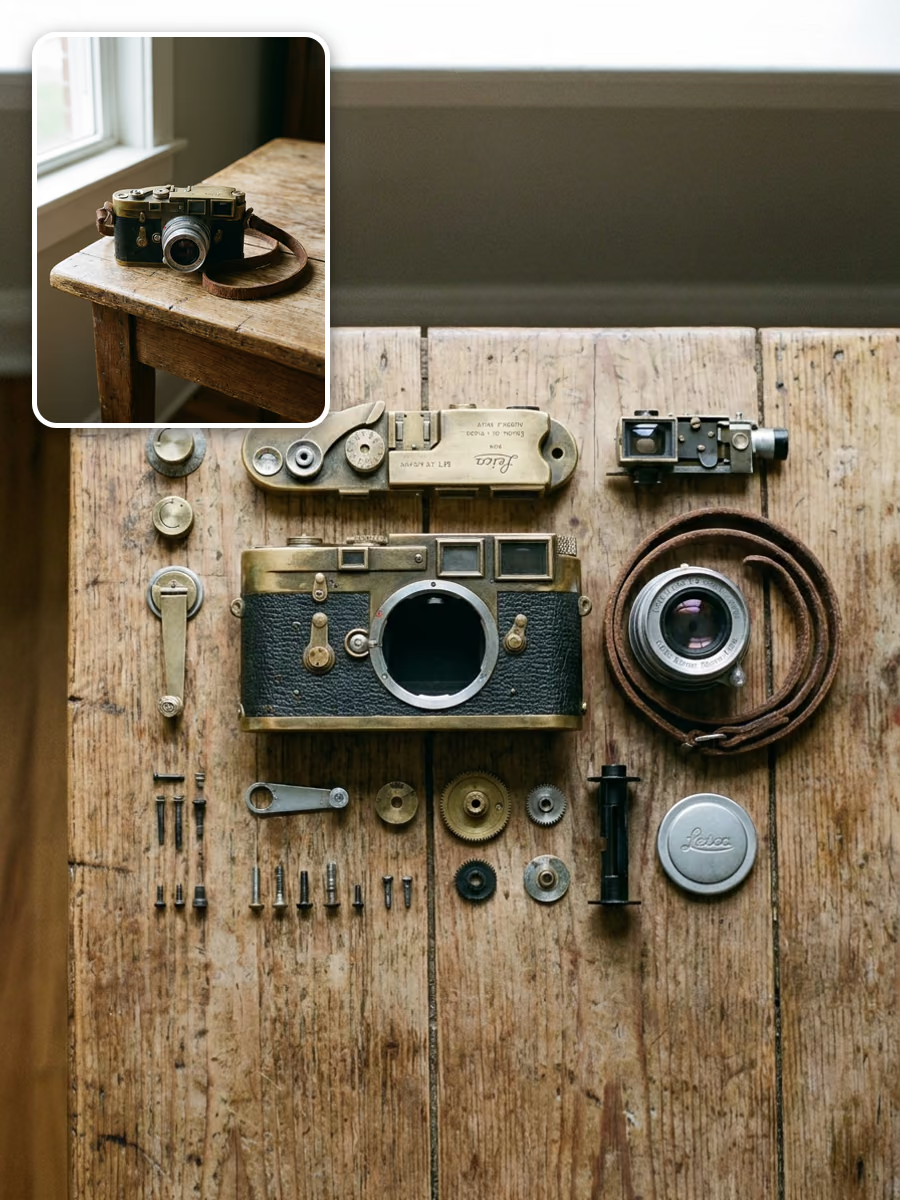
Break an object into its parts and lay them out neatly on a flat surface. Useful for product breakdowns, manuals, and parts-based 3D work.
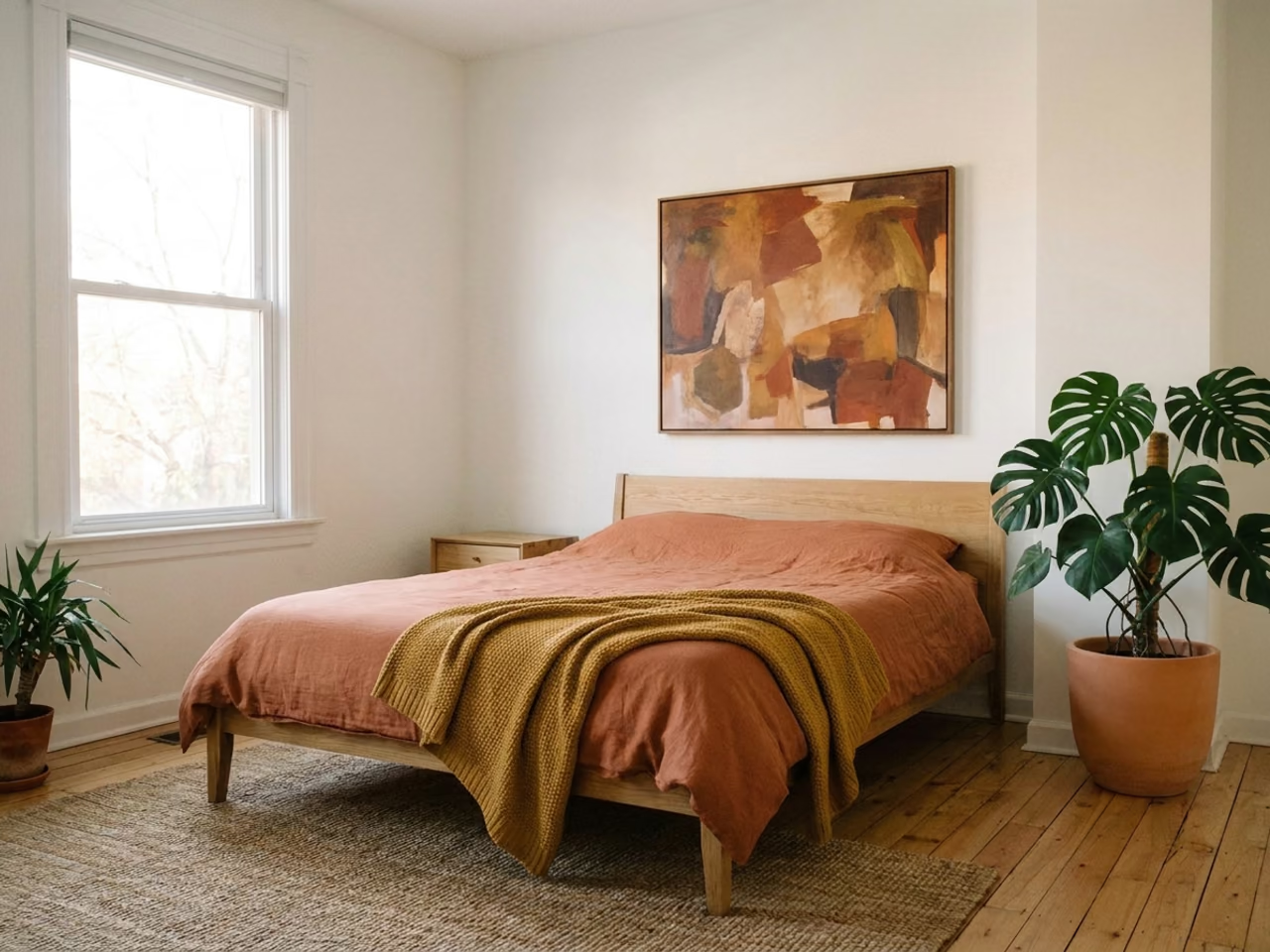
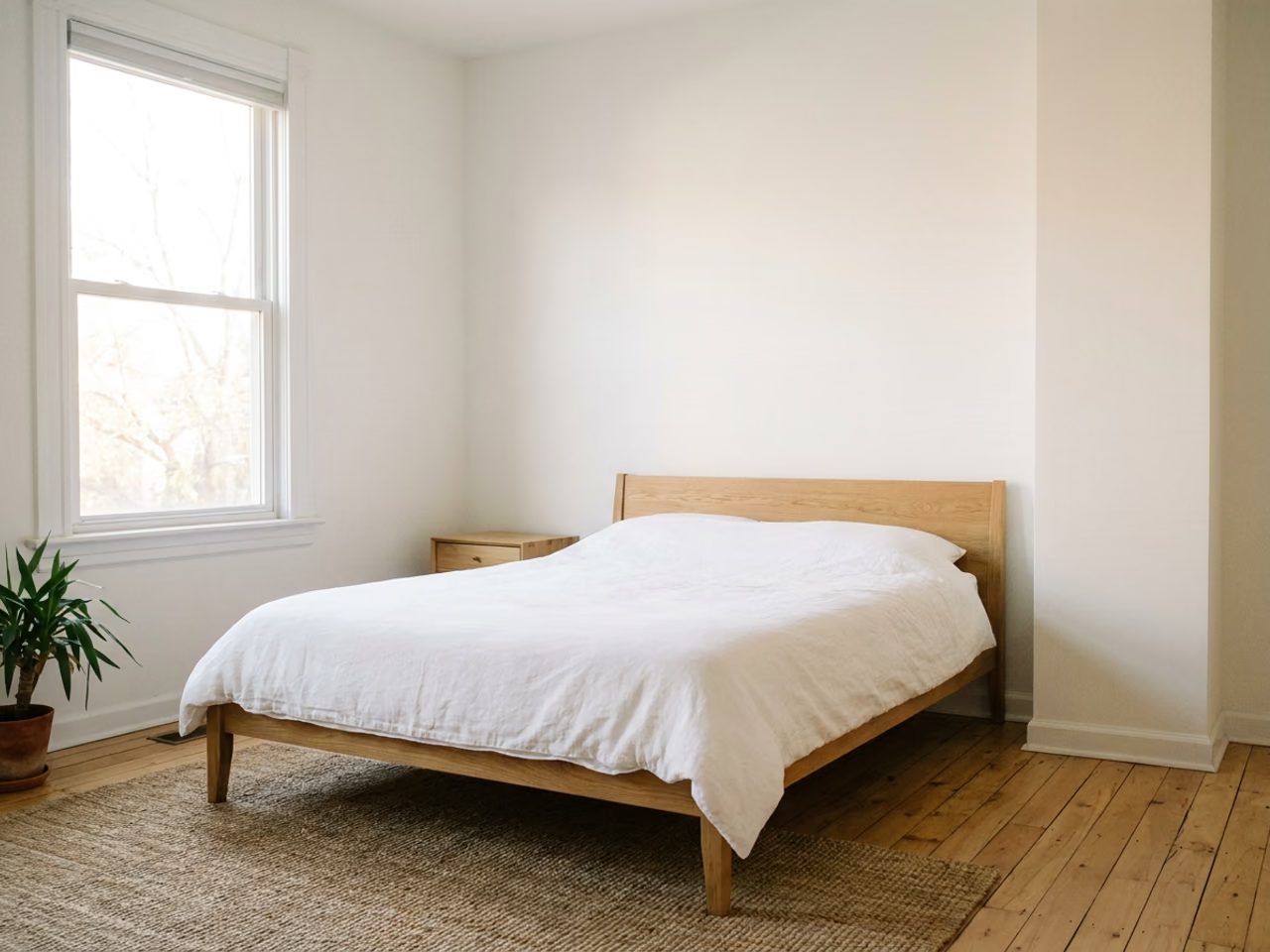
Write the edit the way you would brief a designer: "change the bedding to terracotta linen, hang a painting above the bed, add a monstera in the corner." The AI changes only what you asked for. The room, camera angle, and light stay the same.
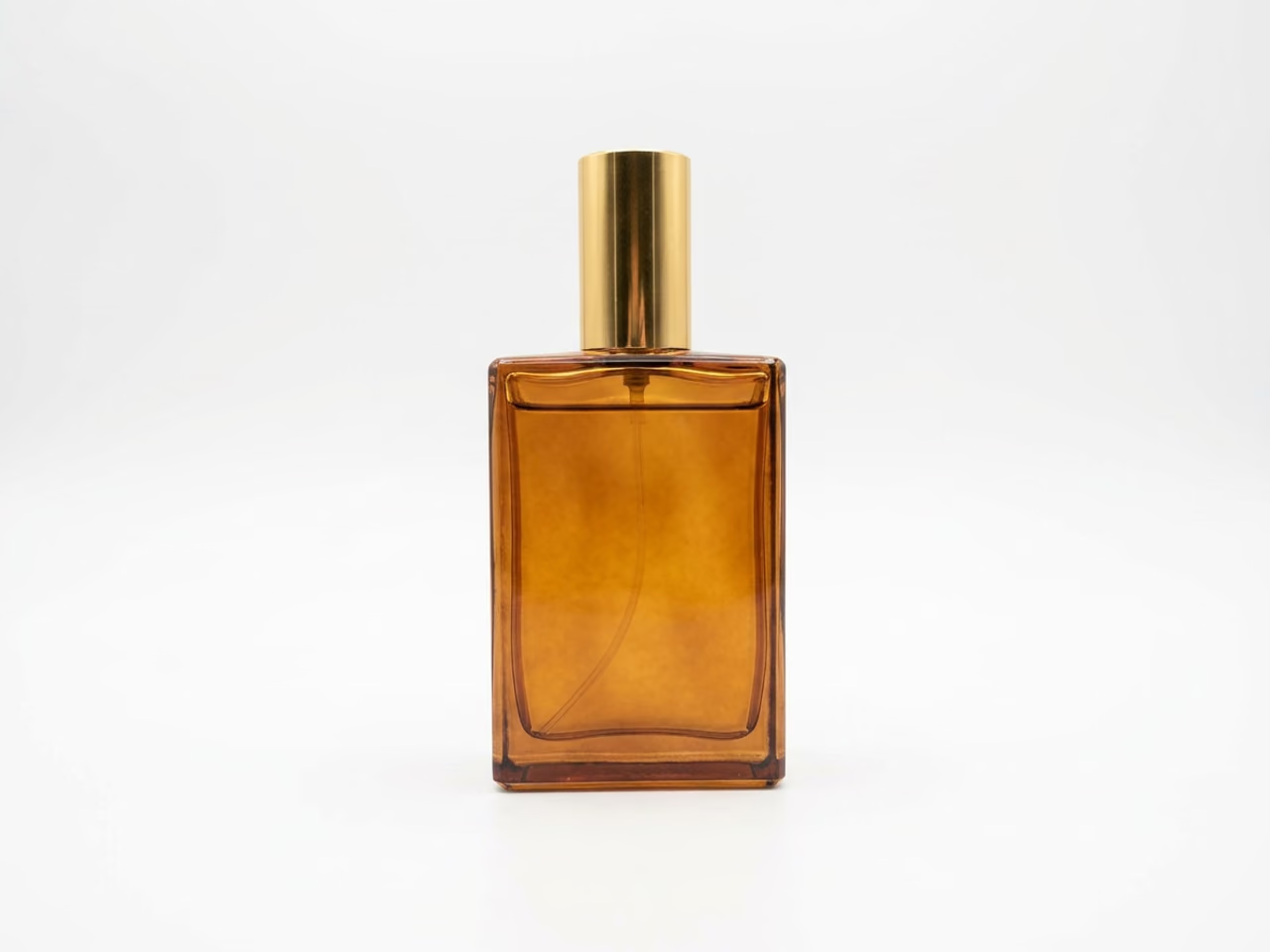
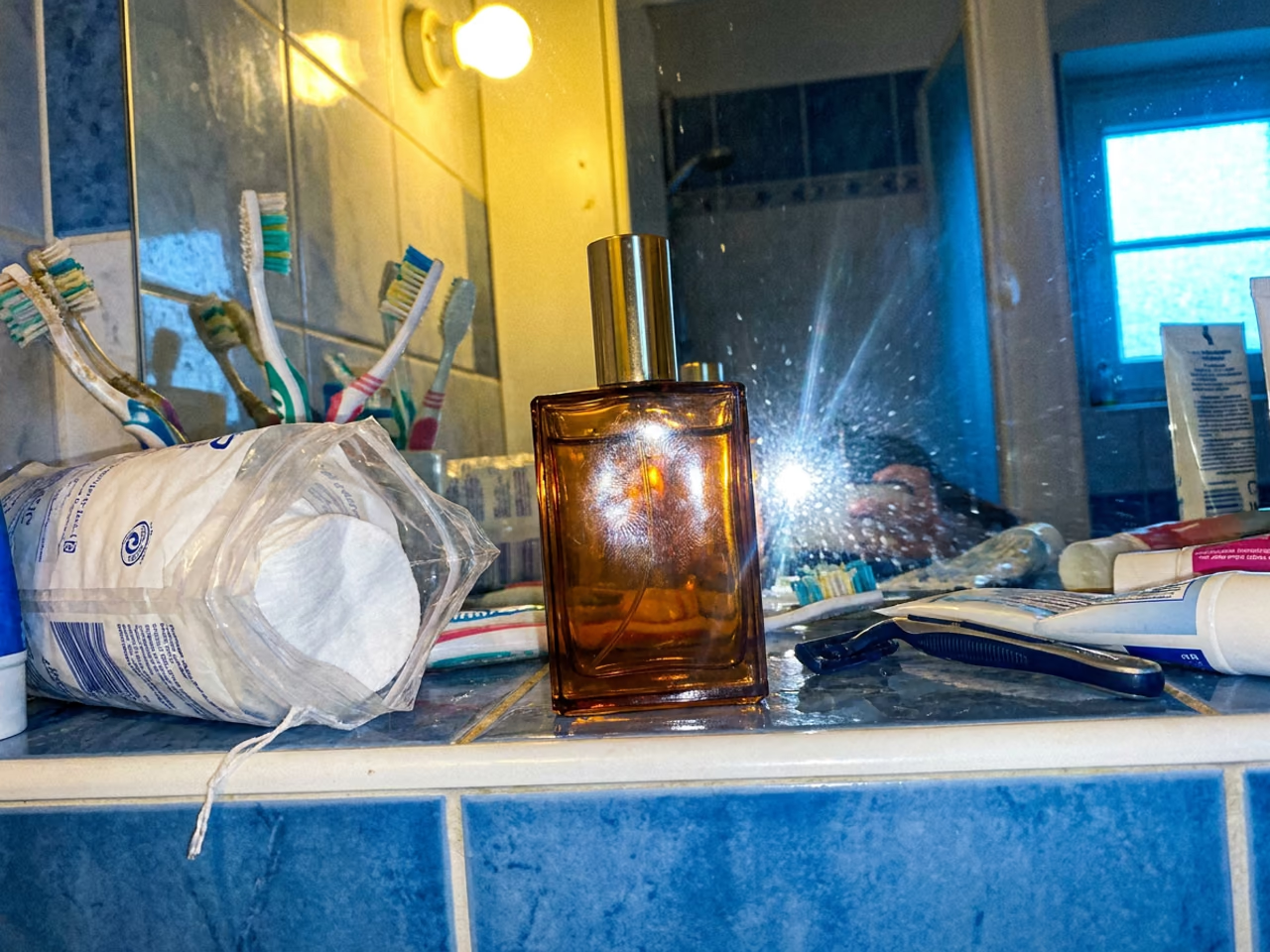
For edits you make all the time, skip the prompt. Quick Fix presets place a product on a clean white background, even out the lighting, sharpen detail, remove props, or turn a selfie into a full-body shot. You can combine a preset with your own prompt.
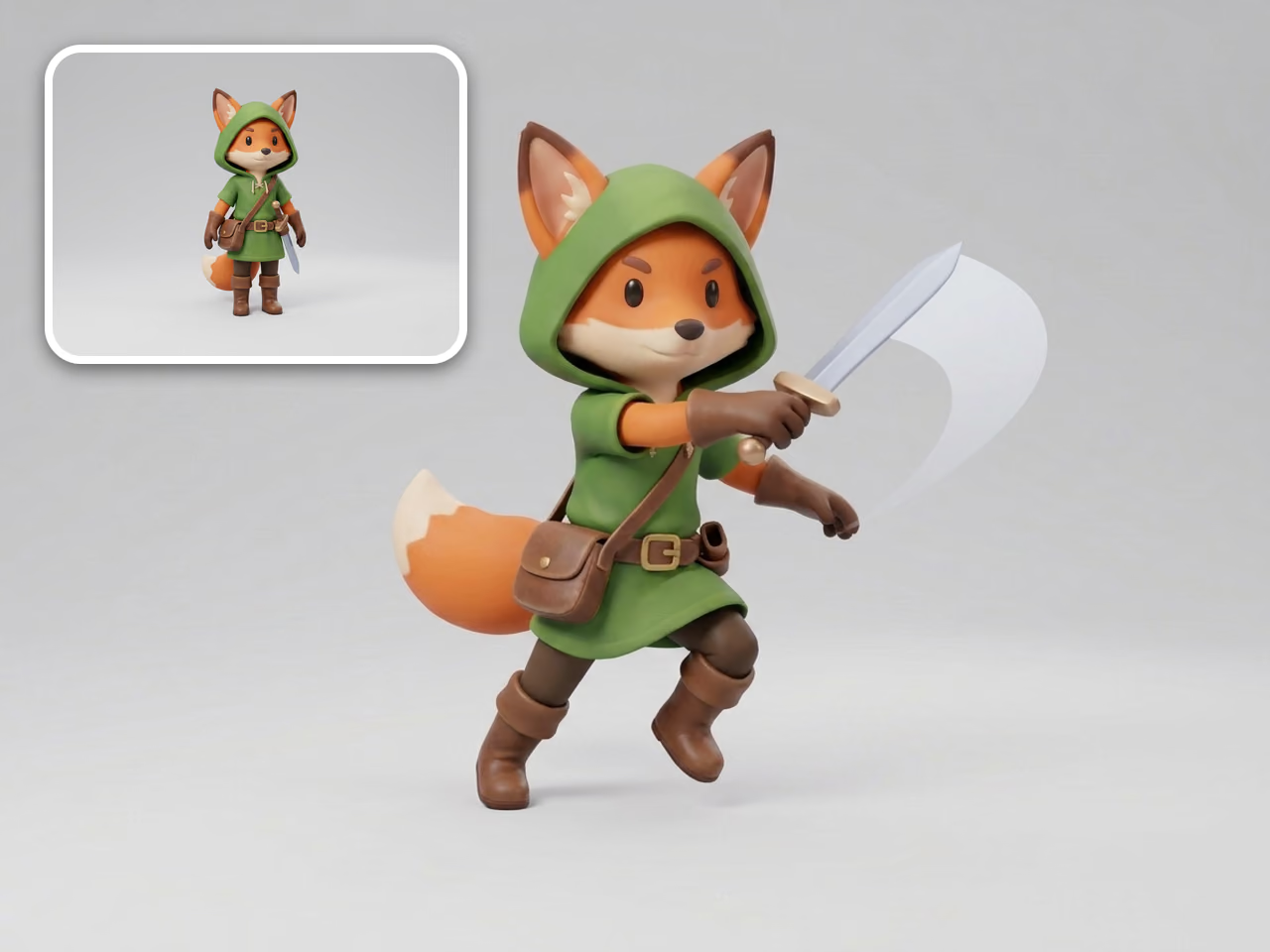
Repose a character without redrawing it. Choose from 16 pose references, such as T-pose, A-pose, walking, sprinting, sword swing, and bow aim. The character design, outfit, and style stay the same. Style presets and your own custom styles change the look of a whole image in the same way.
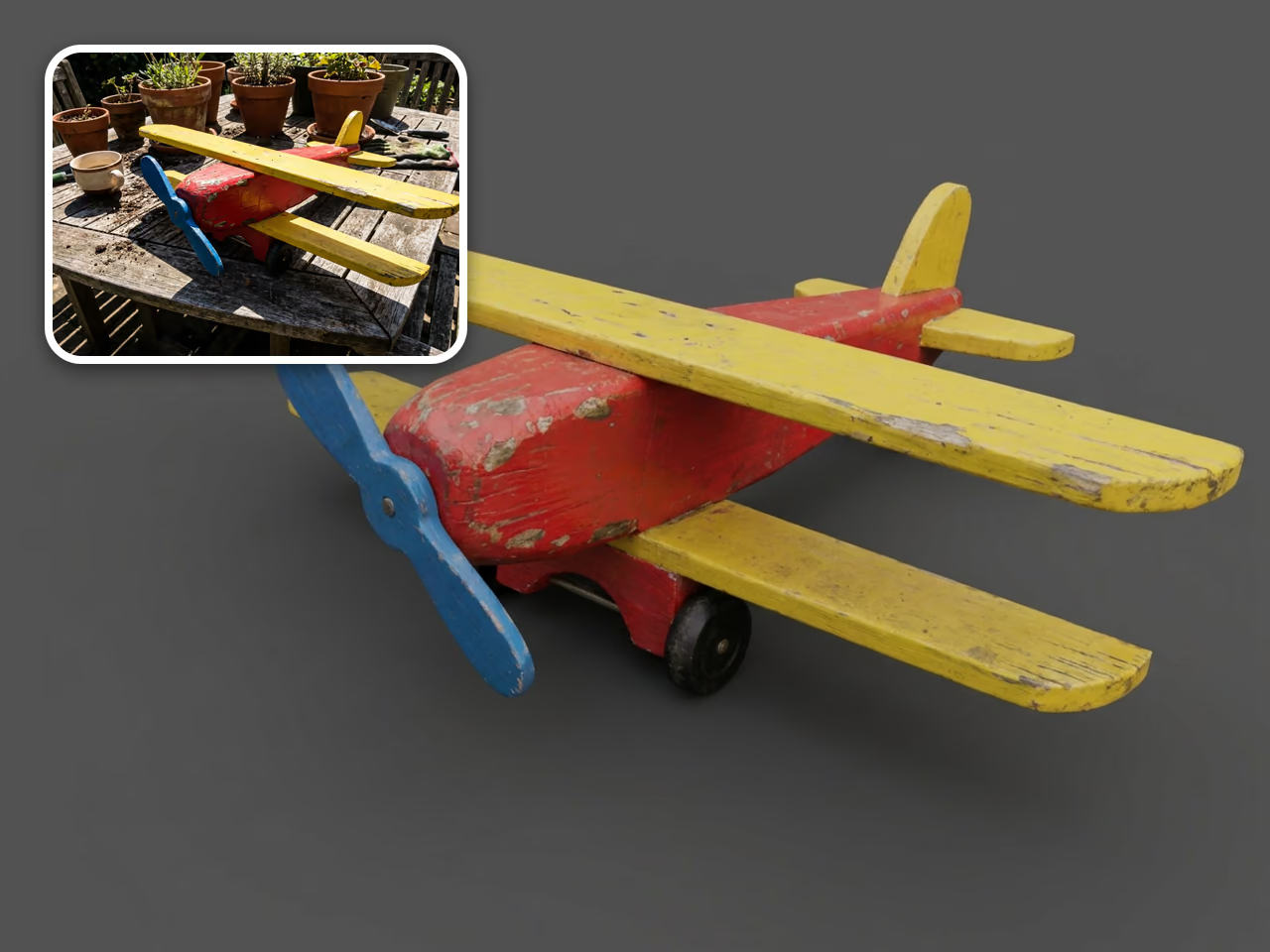
Image-to-3D works best with one complete subject in soft, even light. The Improve for 3D preset gets you there from a casual photo. It uncrops the subject, removes the background, flattens harsh shadows, and keeps the original colors. Then click Generate 3D.
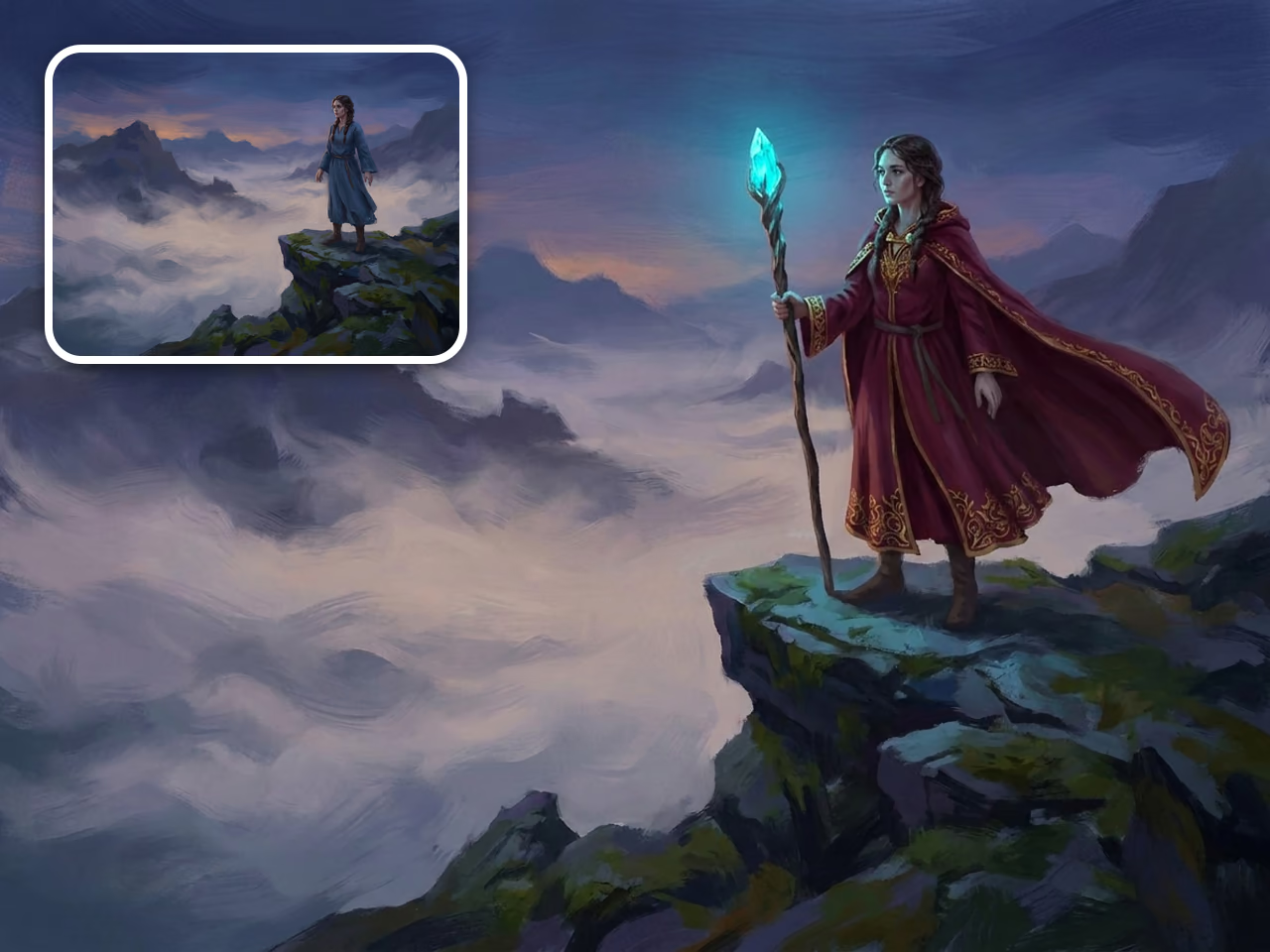
Got an image from Text-to-Image that is almost right? Change the outfit, add a prop, or fix a detail without losing the composition you already like. Every edit is saved as a new version, so you can keep iterating or go back.
Open the Sloyd image editor and upload a photo, render, or AI-generated image (up to 30 MB). On mobile you can take a photo with your camera.
Type what to change, like "remove the background" or "make the sofa green velvet". Or choose a Quick Fix, Pose, Base, or Style preset. You can use both together.
The result is usually ready in under 30 seconds and saved next to your original. Download it, run another edit on it, or click Generate 3D to turn it into a 3D model.
An AI image editor changes an existing image based on a written instruction. You do not select, mask, or paint anything. You describe the change, like "remove the background" or "add snow", and the AI edits the image while keeping the rest of the scene intact.
Upload the photo to the Sloyd image editor, type the change you want in the prompt box, and click Generate. Be specific about what should change and what should stay the same, for example "change the sofa to green velvet, keep the room and lighting the same".
Yes. The Clean background Quick Fix places your subject on a clean white background. Remove props takes out accessories, held items, and background clutter while keeping the main subject and pose. You can also remove a specific object by naming it in your prompt.
AI image editing is part of the Sloyd Plus and Pro plans, and both include unlimited image edits. You can create a free Sloyd account first to try Text-to-3D and Image-to-3D.
Photos, product shots, renders, illustrations, concept art, and AI-generated images. Upload one image per edit, up to 30 MB.
The editor is designed to keep everything you did not mention, including the subject, composition, camera angle, and lighting. If something drifts, say what must stay the same, like "keep the exact same face and pose", and run the edit again. Your original is always kept.
Yes. Choose one of 16 pose presets, including T-pose, A-pose, walking, sprinting, jumping, sword swing, and bow aim. The editor reposes the character and keeps its design, outfit, and style.
Image-to-3D gives the best results from a single, uncropped subject in soft, even light on a plain background. The Improve for 3D preset turns an everyday photo into that kind of reference. You can then click Generate 3D to convert the edited image into a 3D model.
No. You do not need layers, masks, or selection tools. If you can describe the change in a sentence, you can make it. Presets cover the most common edits in one click.