YouTube Thumbnail Generator: Create Eye-Catching Thumbnails with AI
Generate YouTube thumbnails that get clicks. Learn composition rules, readable text placement, and how to create custom thumbnail images with AI.
Your video is only as good as the thumbnail that gets someone to click it. In a sea of hundreds of suggested videos, you have about one second to catch a viewer's eye—and that second is won or lost on your thumbnail.
A great YouTube thumbnail isn't just a screenshot of your video. It's a carefully composed piece of visual marketing: bold imagery, readable text, and a clear subject. Here's how to create thumbnails that stand out using AI-generated images instead of stock photos or complex Photoshop work.
What Makes a YouTube Thumbnail Work?
YouTube's algorithm rewards watch time, but it can't deliver watch time if no one clicks. The thumbnail is the first filter. A strong thumbnail has three elements:
1. A Clear Subject
The viewer should understand what the video is about in one glance. A face with an expressive emotion, a product shot, or a key object from the video. Avoid cluttered backgrounds or multiple competing elements.
2. Readable Text
Most thumbnails include 3–6 words of bold text. This is not a full sentence—it's a teaser or a promise. Examples:
- "I Built This in 3 Days"
- "The Problem With AI"
- "Secret Menu Hack"
The text should be large enough to read on a phone screen. Use high-contrast colors (white text on dark backgrounds, or vice versa) and bold, sans-serif fonts.
3. High Contrast and Saturation
Thumbnails compete with dozens of others on the same screen. High saturation colors (bright reds, blues, yellows) and strong contrast (dark vs. light) make your thumbnail pop. Washed-out or low-contrast images disappear.
Why Generate Thumbnail Images with AI?
Traditional thumbnail creation involves:
- Stock photo hunting (most look generic)
- Photoshoots (expensive, time-consuming)
- Complex Photoshop compositing (requires design skills)
AI image generation flips this workflow. You describe the exact scene you need—a dramatic portrait, a fantasy landscape, a close-up of a product—and the generator creates it in seconds. You get custom imagery tailored to your video without the cost or effort of a photoshoot.
Step-by-Step: Creating a YouTube Thumbnail Image
Here's how to generate a thumbnail image with Sloyd's text-to-image tool:
1. Plan Your Composition
Before you generate anything, sketch out what your thumbnail needs:
- Subject: A person? An object? A scene?
- Mood: Dramatic? Cheerful? Mysterious?
- Colors: What palette matches your branding or the video topic?
Example: If your video is "I Built a Tiny House in 7 Days," you might want a wide-angle shot of a small cabin in a forest clearing, golden-hour lighting, to convey accomplishment and warmth.
2. Write a Clear Prompt
AI generators work best with specific, visual descriptions. Don't just say "cool background"—describe the scene like you're briefing a photographer.
Good prompts:
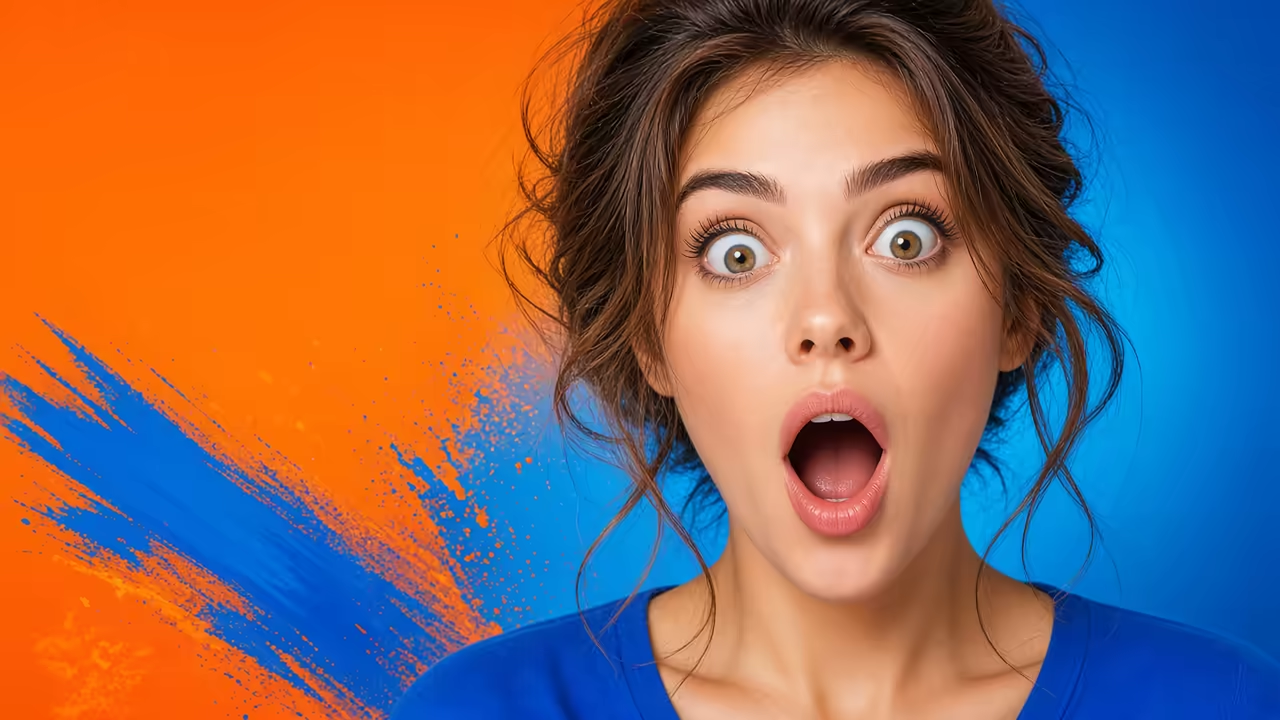
- "Portrait of a surprised woman with glasses, bright studio lighting, clean white background"
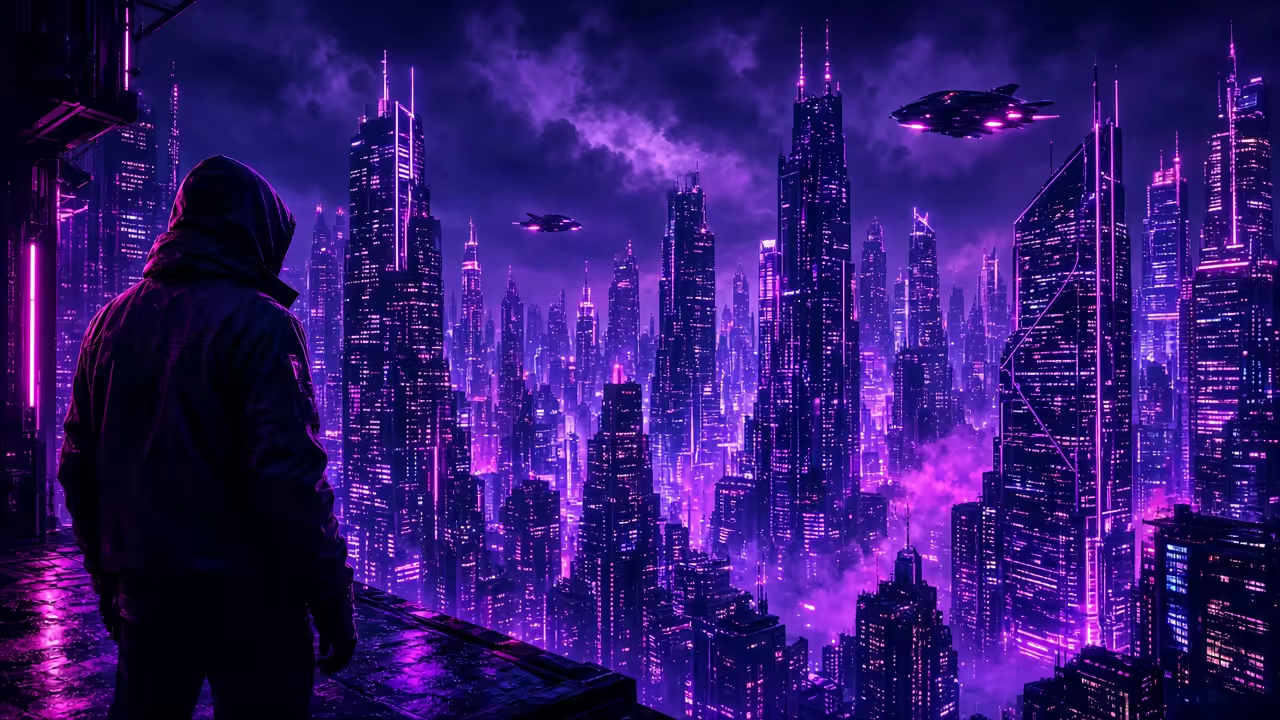
- "Futuristic city skyline at sunset, neon lights, cyberpunk style"
- "Close-up of a steaming coffee cup on a wooden table, cozy morning vibe"
Bad prompts:
- "Nice scene"
- "Something cool"
- "Thumbnail background"
3. Generate the Image
Head to Sloyd's text-to-image generator. Input your prompt and select a style preset if needed (realistic, stylized, vibrant). Hit generate.
You'll get multiple variations. Pick the one that best fits your composition plan.
4. Add Text in Your Editor
AI-generated text is still unreliable—it often produces gibberish or distorted letters. Instead, generate the image with AI, then add your text overlay in a design tool:
- Photoshop: Use bold fonts, add a stroke or shadow for readability
- Canva: Free, simple, and has YouTube thumbnail templates
- Figma: Great for designers who want precise control
Place your text where it doesn't cover the main subject. Use the rule of thirds—position text in the top or bottom third, and the subject in the remaining space.
Here are examples of finished YouTube thumbnails with high-contrast text, split compositions, and bold outlined typography—the style that grabs attention in a feed:

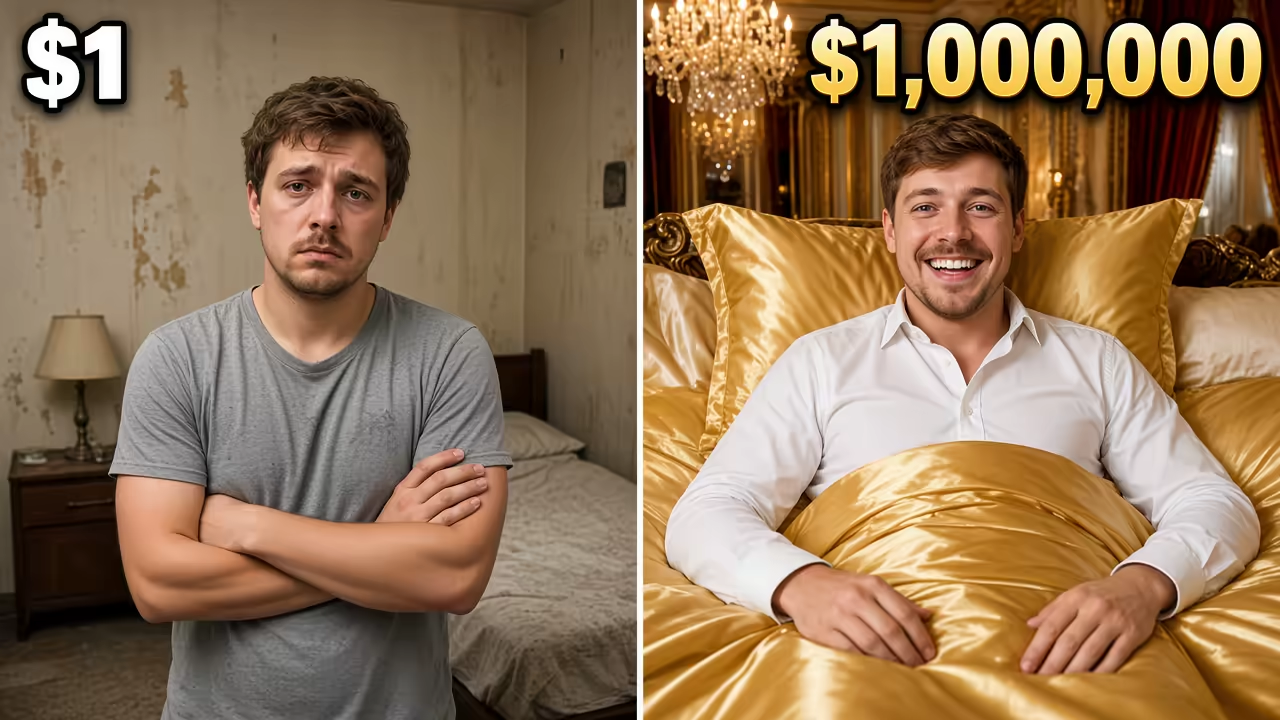

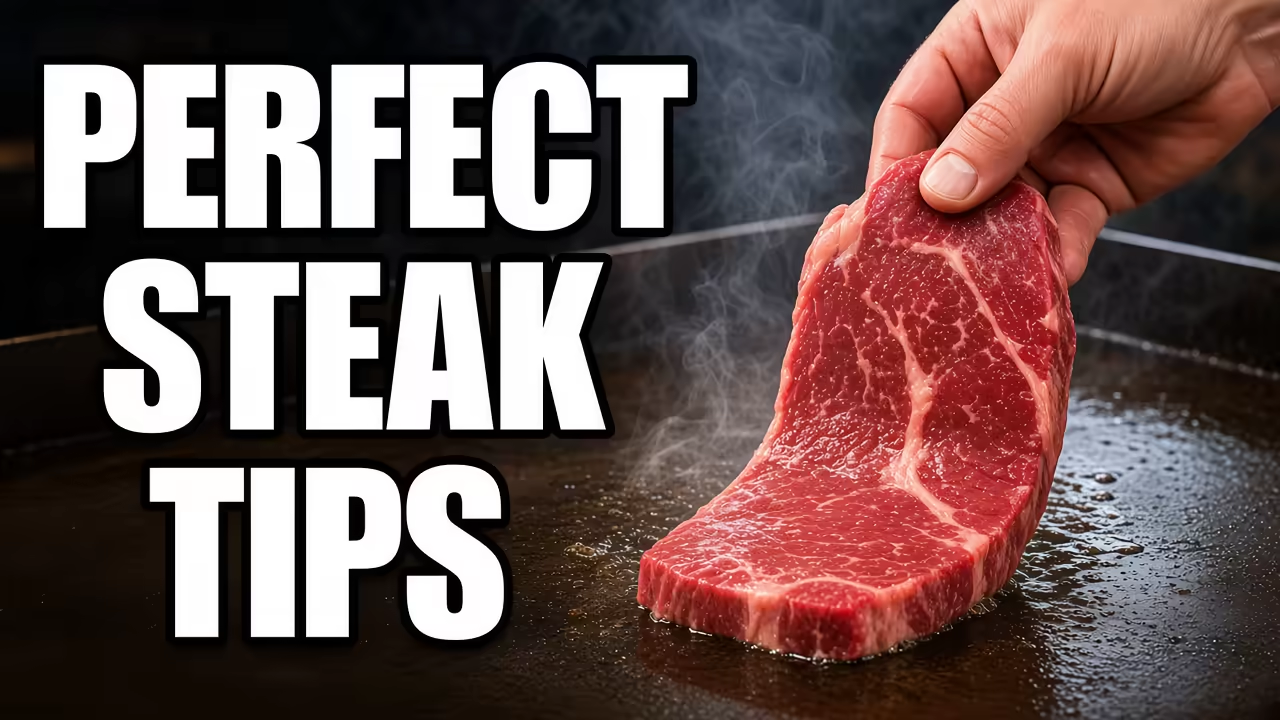

Notice how each thumbnail follows the same formula: one clear subject or comparison, large face or object, and thick white outlined text that pops against any background. You can generate the base image with AI, then add your title text in an editor using this high-contrast style.
5. Test at Small Size
Before uploading, shrink your thumbnail to 320x180 pixels (the size YouTube displays in most mobile views). If you can't read the text or identify the subject, revise it.
YouTube Thumbnail Best Practices
Dimensions and Specs
- Size: 1280x720 pixels (16:9 aspect ratio)
- Format: JPG or PNG
- File size: Under 2MB
- Readable: Test at phone screen size
Consistency Across Your Channel
Successful channels maintain a visual style:
- Same font and text placement
- Consistent color palette (often matching their branding)
- Recognizable framing (e.g., always a face in the left third)
This builds brand recognition. Viewers scroll past and think, "Oh, that's a [YourChannel] video," before they even read the title.
A/B Testing
YouTube allows you to change thumbnails after upload. If a video isn't performing, try a different thumbnail and compare click-through rates in your analytics. Small changes—different facial expressions, text tweaks, color shifts—can have big impacts.
Common YouTube Thumbnail Mistakes
- Too Much Text: More than 6 words becomes unreadable. Use the video title for details—the thumbnail is just the hook.
- Low Contrast: A thumbnail that's all mid-tones blends into the YouTube interface. Push your highlights and shadows.
- Generic Stock Photos: Everyone has seen the same stock images. Custom-generated images feel fresh.
- Faces Too Small: If you use a person, their face should fill a large portion of the frame. Viewers connect with faces—make them big.
- Off-Brand Colors: Wild neon colors might grab attention, but if they don't match your channel's vibe, you attract the wrong audience.
Thumbnail Styles by Content Type
Different video types benefit from different thumbnail approaches:
Educational/Tutorial Videos
- Clean, simple backgrounds
- Clear shot of the subject (tool, product, concept)
- Text that promises a result ("How to Fix This in 2 Minutes")
Entertainment/Vlogs
- Expressive faces showing strong emotion (surprise, excitement, confusion)
- Bright, saturated colors
- Minimal text, let the expression do the work
Gaming
- Action shots from the game
- Bold text with game-related keywords
- High contrast, vibrant colors (games are inherently colorful)
Product Reviews
- Close-up of the product
- Text with the product name or a verdict ("Worth It?")
- Clean background so the product stands out
Why Sloyd's Text-to-Image Tool Works for Thumbnails
Sloyd's text-to-image generator is built for creators who need fast, custom visuals. Unlike 3D-focused tools, it generates 2D images perfect for:
- YouTube thumbnails
- Social media posts
- Blog headers
- Marketing graphics
The interface is straightforward: describe your scene, pick a style, generate. With unlimited generations for subscribers, you can iterate through dozens of variations in minutes, testing different compositions until you find the one that works.
No stock photo subscriptions. No photoshoots. No complex Photoshop skills. Just a clear description of what you need, and the AI delivers.
Start Creating Thumbnails That Get Clicks
The difference between a video with 1,000 views and 10,000 views is often just the thumbnail. A strong thumbnail earns the click. A weak one gets scrolled past.
With AI image generation, you're not limited by your photo library or design skills. You can create exactly the image you need, tailored to your video, in seconds.
Try generating your next thumbnail image with Sloyd—describe your ideal shot, generate it, add your text, and upload. See how fast you can go from concept to published video with a professional thumbnail.