Lip Sync AI: Make Your Characters Talk in Seconds
Learn how lip sync AI turns character images and voice lines into talking videos for game dev, devlogs, and social posts in 5-15 seconds.
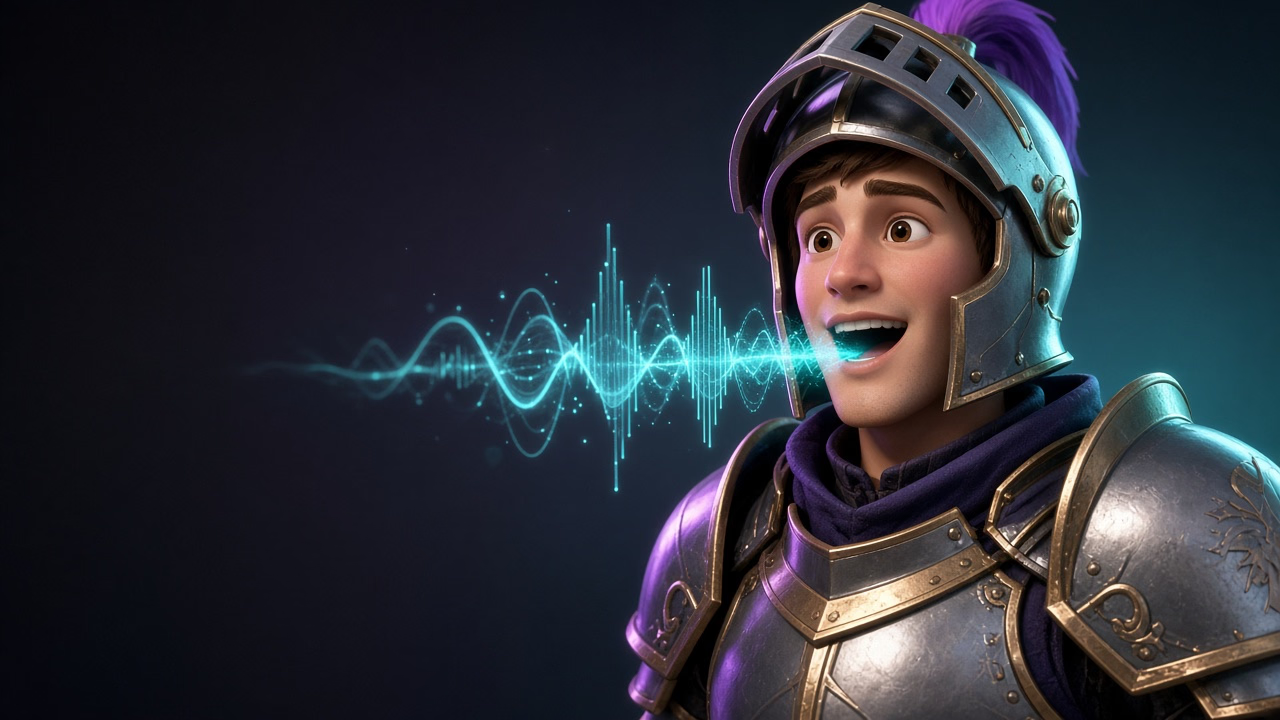
A character portrait shows who they are. A voice line tells you what they sound like. Put the two together with lip sync AI and you get a talking character clip in seconds — no rigging, no animation curves, and no frame-by-frame keyframing. That is the loop this guide covers: image plus audio to a lip-synced video clip.
Sloyd Video Studio takes a character image and an audio reference (generated in Sloyd Audio or uploaded from anywhere), syncs the lip movement to the voice line, and gives you back a 5 to 15 second MP4. Use it for NPC introductions, character reveals in devlogs, social media teasers, or placeholder clips while the final animations are still in production. Video and audio generation are part of Sloyd Plus and Sloyd Pro.
What is Lip Sync AI?
Lip sync AI analyzes a voice line and generates matching mouth movement on a character image so the lips, jaw, and expression follow the speech. Traditional lip sync requires a rigged character, phoneme mapping, and manual keyframing. An AI lip sync tool skips the rig and maps the audio directly onto a still image, so a character portrait becomes a talking clip without 3D setup or animation software.
In Sloyd, you combine a subject image (your character) with an audio reference (the voice line) and the AI generates the video with the speech synced to the lip movement. The character stays on model because you control the starting frame, and the voice is exactly what you uploaded or generated, not an approximation.
How to Make a Character Talk with AI Lip Sync
The fastest route to a talking character is the workflow where you already have the image and the voice. If you have neither yet, generate the character with text to image or text to 3D (then render a still), and write the line in Sloyd Audio. If you have a character portrait from concept art or a previous render, start there.
Step 1: Choose Your Character Image
Upload a character portrait or pick one from your Sloyd images. A clear frontal or three-quarter view of the face works best — the AI needs to see the mouth. A full-body shot with a small face can work, but the lip movement will be subtle at that scale. If you made the character as a 3D model first, render a clean still of it with good lighting and use that still as the subject image.
Profile views and heavily shadowed faces make lip sync harder because the mouth is partially hidden or turned away. Stick with forward-facing portraits when you can.
Step 2: Prepare the Voice Line
Generate the line in Sloyd Audio or upload an MP3 or WAV file. Sloyd Audio reads up to 5,000 characters in a voice from the library and generates speech from 0.5 to 30 seconds, downloading as a 44.1 kHz MP3. Pick a voice from the stock library or design a new voice from a text description — Sloyd does not clone a real person's voice.
Keep the line short for a clip. A single sentence or a short exchange (5 to 15 seconds of speech) matches the video generation range. Longer monologues should be split into separate clips and cut together in your editor.
Make sure the audio is clean. Background noise, music bleeding in, or heavily processed effects can confuse the lip sync and produce mismatched movement.
Step 3: Generate the Lip-Synced Video
In Video Studio, set the character image as the subject and add the audio as a reference. Write a prompt that describes the action, for example:
"The knight looks straight into the camera and speaks the line from the audio with perfect lip sync and a calm, confident expression."
The prompt should name the lip sync explicitly and set the mood or expression. The model will sync the mouth to the speech and apply the emotion you described. You can also guide the framing (close-up, medium shot) and the camera behavior (locked, slow push in), but the subject and the audio reference are doing most of the work here.
Choose the aspect ratio before you generate: 16:9 for YouTube and Steam trailers, 9:16 for Reels and TikTok, or 1:1 for social posts. The length is 5 to 15 seconds per generation, so one clip covers one line or a short exchange.
Hit Generate video and the clip comes back with the speech synced to the lip movement, plus matching sound, so the ambient noise and the voice arrive together.
Step 4: Download and Use the Clip
Watch the result, check that the timing and expression match your script, then download the MP4. If the line needs to hold longer, use Extend to continue the clip. Extend works on one clip at a time: it makes a single shot longer, it does not join two different clips together. Building a sequence of multiple talking shots happens in your video editor, not in Sloyd.
For a character introduction or a devlog teaser, one 10-second clip is often enough. For dialogue with back-and-forth exchanges, generate each line as a separate clip and cut them together.
How Can Game Developers Use AI Lip Sync?
Lip sync AI fits several parts of the game development and marketing workflow, especially when you need a talking character clip fast and the final animation rig is not ready yet.
NPC Introductions and Character Reveals
When you introduce a new character in a trailer or a social post, a short talking clip shows personality in a way a static portrait cannot. Generate a line that matches the character's voice and role — a guard barking a command, a quest giver hinting at danger, or a shopkeeper greeting the player — and you have a clip that reads immediately.
Devlog Content and Behind-the-Scenes Updates
Devlogs benefit from showing progress in motion. Instead of narrating over still images or spending hours setting up a character to lip sync in your 3D software, generate a clip of the character speaking a line that introduces a feature or a design choice. The clip makes the update more engaging and the workflow is faster than traditional animation.
Social Media Teasers and Short-Form Content
Short vertical clips for TikTok, Reels, and Shorts need to grab attention in the first second. A character turning to the camera and delivering a one-liner does that better than a static image with text overlay. Generate the clip in 9:16, trim it to the beat, and post.
Placeholder Dialogue for Prototypes
When you are testing dialogue pacing, quest flow, or narrative structure, you need to hear the lines in context before you commit to final voice recording. Generate placeholder voice-over with AI, sync it to a character portrait, and drop the clips into your prototype. It is faster than recording scratch audio yourself and it sounds closer to a polished line than reading the script out loud.
What Are the Limits of AI Lip Sync?
Lip sync AI is fast and flexible, but it is not a replacement for hand-animated, rigged character dialogue in every situation. Here are the practical limits.
Clip Length
Each generation runs 5 to 15 seconds. For a longer monologue, use Extend to continue the clip, or generate several short clips and cut them together in your editor. Extend lengthens one clip at a time; it does not stitch different shots together.
Expression Range
The AI syncs the lip movement to the speech and applies the emotion you described in the prompt, but fine control over micro-expressions, eye darts, and secondary motion is limited. A subtle performance with layered emotion is still a job for a rigged character and a skilled animator.
Profile and Occlusion
Frontal and three-quarter views of the face work best. Profile shots, heavily shadowed faces, or characters wearing masks or helmets that cover the mouth will produce weaker lip sync because the model has less mouth geometry to work with.
Audio Quality
The cleaner the audio, the better the sync. Noisy recordings, music bleeding into the voice track, or heavily processed effects can throw off the timing. If the lip sync looks loose, check the audio first.
FAQ
What is lip sync AI?
Lip sync AI generates mouth movement on a character image that matches a voice line, so a still portrait becomes a talking video clip. The AI analyzes the speech and animates the lips, jaw, and expression to sync with the audio.
How do I make a character talk with AI?
Upload a character image and an audio file (or generate one in Sloyd Audio), set the image as the subject and the audio as a reference in Video Studio, describe the expression and framing in the prompt, and generate. The result is a 5 to 15 second video with the lip movement synced to the speech.
Do I need a rigged 3D model?
No. Lip sync AI works from a still image, so you do not need a rig, blend shapes, or animation software. A clean character portrait is enough.
Can I upload my own voice recording?
Yes. Upload an MP3 or WAV file as the audio reference, or generate a voice line in Sloyd Audio and use that. The audio must be clear with minimal background noise for the best sync.
How long can a lip-synced clip be?
Each generation is 5 to 15 seconds. For a longer line or monologue, use Extend to continue the clip, or generate several short clips and cut them together in your video editor.
What aspect ratio should I use?
Choose 16:9 for YouTube trailers and Steam headers, 9:16 for TikTok and Reels, or 1:1 for square social posts. Video Studio also supports 21:9, 4:3, and 3:4. Pick the frame before you generate rather than cropping afterward.
Does the video include sound?
Yes. Every video is generated with sound, so the character's voice and any ambient noise arrive with the picture. The lip sync is timed to the audio you provided as a reference.
Can I design a custom voice?
Yes. Sloyd Audio lets you design a new voice from a text description, or pick one from the stock voice library. There is no voice cloning (copying a real person's voice), but you can cast a voice that fits the character's tone and role.
Do I need a paid plan?
Yes. Video and audio generation are part of Sloyd Plus and Sloyd Pro. Sloyd itself is free to start with the Guest plan, but generating video and audio requires a paid subscription. Compare the tiers on the pricing page.
Which AI model generates the lip sync?
You do not pick one. Sloyd routes each workflow so you can focus on the character and the line instead of comparing model names.
Make Your Characters Speak
A character image plus a voice line becomes a talking clip in seconds. No rig, no animation curves, and no manual keyframing. Generate the portrait with text to image or text to 3D, write the line in Sloyd Audio, sync them together in Video Studio, and download the MP4 for your devlog, trailer, or social post.
See how the whole asset loop fits together on the game development page, or the e-commerce page for product presentations. Compare plans on the pricing page.