Using Sketches and Silhouettes for Image to 3D
Convert 2D sketches and silhouettes into 3D models instantly with AI. Learn tips for cleaner inputs and faster image-to-3D results.
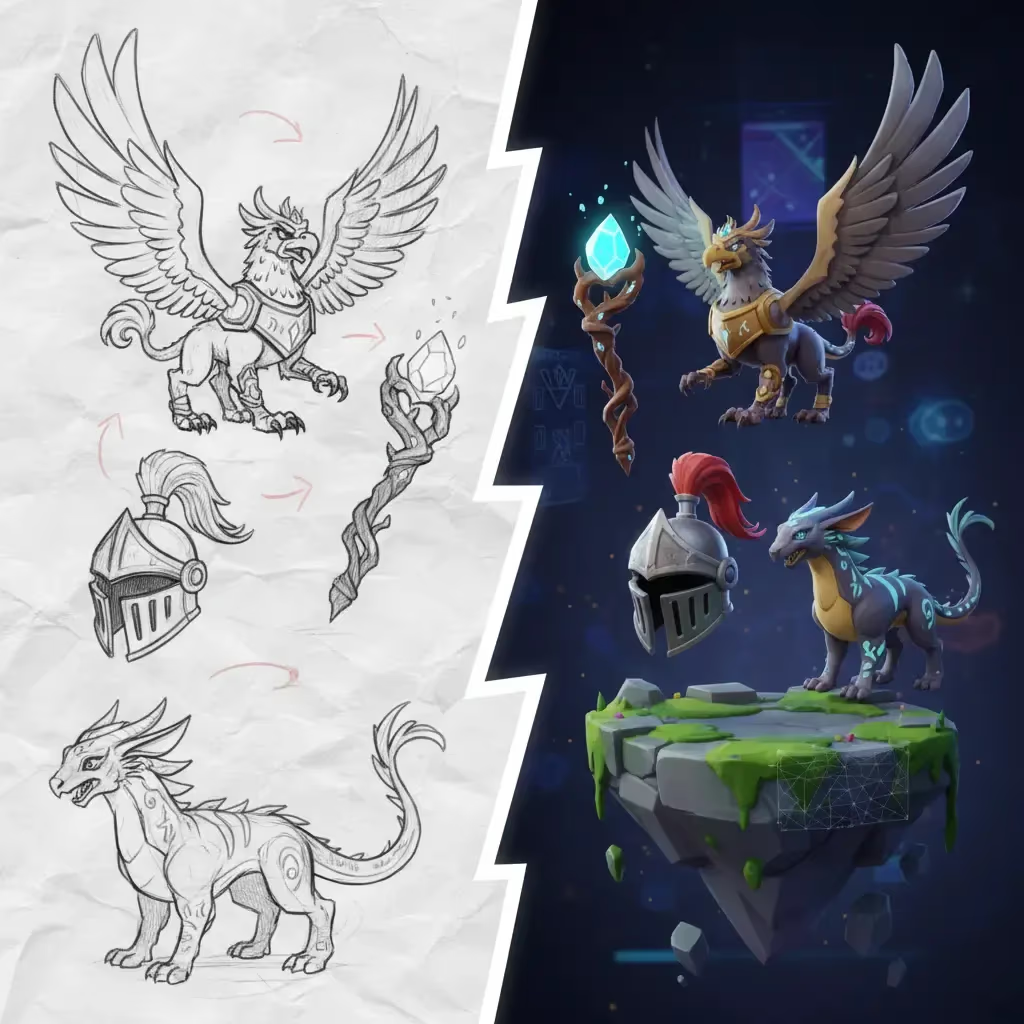
We’ve all been there: you have a brilliant concept for a game asset or a product design, but it’s stuck in your sketchbook. Maybe it’s a quick silhouette you drew on a tablet, or a rough doodle on the back of a napkin. Traditionally, turning that 2D concept into a 3D model would require hours of manual modeling in complex software.
But what if you could skip the modeling phase and go straight from a simple drawing to a 3D asset?
With Sloyd’s Image-to-3D generator, you can instantly convert your sketches and silhouettes into 3D models. This tool is a game-changer for indie developers, concept artists, and 3D printing enthusiasts who want to prototype fast without getting bogged down in vertices and polygons.
Why Silhouettes and Sketches Work Best
While it might seem counterintuitive, AI often performs better with simple, high-contrast images than with complex, busy photographs. When you feed a clean silhouette or a clearly outlined sketch into the AI, there is less "noise" for the algorithm to interpret.
- Silhouettes provide a definitive shape, allowing the AI to understand the exact volume and boundaries of the object.
- Line art gives clear structural cues without confusing the AI with lighting artifacts or background clutter.
By stripping away colors, shadows, and textures, you force the AI to focus purely on the geometry. This makes sketches the perfect input for generating "base meshes"—foundational 3D models that you can further refine or use immediately as low-poly assets.
How to Turn Your Drawing into 3D
Getting started is incredibly simple. You don't need to be a prompt engineer or a 3D pro to get results.
- Prepare your image: Ensure your sketch has a clean background. If you need to convert your file format, you can use our free tools to convert JPG to STL or PNG to STL compatible images.
- Upload to Sloyd: Navigate to the Sloyd Web App.
- Choose your settings: Select your desired output style. If you are making a game, you might choose "Low Poly." If you want to print your creation, select "3D Printing" to ensure the model is watertight.
- Generate: Hit the button and watch your 2D drawing extrude into 3D space in seconds.
Why Choose Sloyd Over Competitors?
There are several AI tools out there, such as Meshy or CSM, but Sloyd offers a distinct advantage for creators who need to iterate.
- Unlimited Generations: Most competitors use a credit-based system, meaning every failed experiment costs you money. Sloyd operates on a subscription model that allows for unlimited generations. You can refine your sketches and re-generate as many times as you need until you get the perfect result.
- A Full Ecosystem: Sloyd isn't just an Image-to-3D tool. We also offer a Text-to-3D generator and a unique Template Editor. If your sketch doesn't yield the perfect result, you can switch to our parametric templates to build exactly what you need with precise control.
| Feature | Sloyd | Competitors (e.g., Meshy, CSM) |
|---|---|---|
| Pricing Model | Subscription (Unlimited Generations) | Credit-based (Pay-per-generation) |
| Iteration Freedom | Refine and retry endlessly | Each failed attempt costs credits |
| Ecosystem | Image-to-3D, Text-to-3D, Parametric Templates | Often standalone AI tools |
| Best For | Iterative design & prototyping | Single, one-off generations |
Best Practices for Sketch-to-3D
To get the absolute best results from your drawings, keep these tips in mind:
- High Contrast is King: Use dark lines on a white background (or vice versa).
- Avoid Shadows: Do not shade your drawing. Shadows can be misinterpreted by the AI as geometry, resulting in weird lumps or distortions.
- Single Object Focus: Don't draw a full scene. Keep your canvas focused on a single object, like a sword, a potion bottle, or a helmet.
- Front-Facing Views: Draw your object from a straight-on angle. Extreme perspectives can confuse the AI regarding the object's depth.
| Attribute | Recommendation | Why it matters |
|---|---|---|
| Contrast | High (Dark lines on white) | Helps the AI define clear boundaries |
| Shading | None (Flat lines/Solid shapes) | Shadows are often misinterpreted as unwanted lumps |
| Subject | Single Object | Multiple objects or scenes confuse the geometry |
| Perspective | Front-Facing | Extreme angles distort the AI's understanding of depth |
Ready to bring your sketchbook to life? Head over to Sloyd.ai and start creating today. Whether you are building a level for your next indie game or just experimenting with 3D forms, your drawings are the only blueprint you need.